January 16, 2023
How to Display a Live X (Twitter) Feed at Events and on Digital Screens
X minuto di lettura


Infrastruttura sociale che si adatta a te.
Inizia la tua prova gratuita o lascia che ti mostriamo la piattaforma in azione.
If you work in event marketing, a live social feed on screen is no longer a nice-to-have. It's part of the experience. Studies in event tech show that displaying attendee-generated content on screens can increase audience interaction by nearly 40%, and the reason is straightforward: people post when they know their content might appear somewhere. The screen creates a participation loop that keeps energy going throughout the event.
A live X (Twitter) feed taps directly into that. When you give attendees a branded hashtag and display their posts, you turn passive observers into active contributors. The conversation doesn't stay on phones. It becomes part of the event itself.
In this guide, we cover why live X feeds work at events, the different contexts where they're used, how to set one up with Flockler, and what features to look for in a live feed tool.
Why Display a Live X (Twitter) Feed at Events?
A live X feed does a few things that no other screen content can replicate:
It builds community in real time. When attendees see their posts appear on screen, they feel part of something bigger than just the audience. That sense of inclusion drives more sharing, which extends your event's reach on X beyond the venue.
It gives your hashtag a purpose. A branded hashtag without a display is just a tag. When attendees can see it come to life on a wall or screen, they have a reason to use it. That drives organic awareness and reach for your event, without additional spend.
It creates a two-way channel. Through the hashtag feed, you can collect questions for speakers and gather feedback in real time. It turns a one-directional presentation into an ongoing conversation.
It extends the event online. For hybrid and virtual events in particular, a live feed connects remote and in-person attendees around a single shared conversation. Anyone watching online sees the same posts appearing as the in-room audience.
It keeps working after the event. The same feed can be embedded on your event website before, during, and after the event, building anticipation and capturing highlights afterward.
Live X (Twitter) Feed Examples by Event Type
Conferences and Trade Events
Conferences are one of the most common use cases for live X feeds. Attendees, speakers, and sponsors all use the event hashtag to share insights, reactions, and announcements throughout the day. Aggregating those posts on a display screen keeps the conversation visible to everyone in the room and gives the event a sense of live momentum.
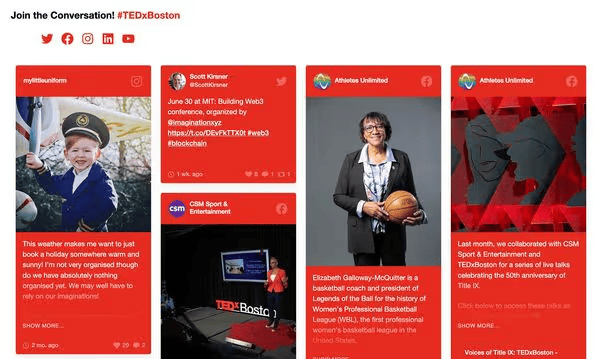
A well-branded social wall using the event's colors and logo makes the feed feel like an official part of the event rather than an afterthought. Showing posts from speakers and sponsors alongside attendee content gives the feed variety and keeps it relevant across sessions.
University Graduation Events
Graduations are family occasions, and social media activity at commencement ceremonies tends to be high. Students, parents, and faculty all share the moment across platforms, and displaying that content on a screen during the event is a simple way to make the occasion feel more communal.
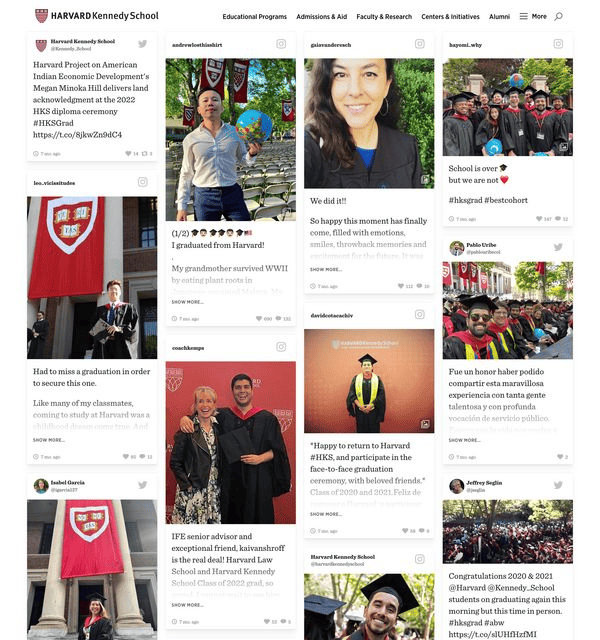
Universities often run live X feeds alongside Instagram content in a combined display, pulling from the official graduation hashtag. The feed adds a personal dimension to what can otherwise be a formal ceremony.
Sports Events
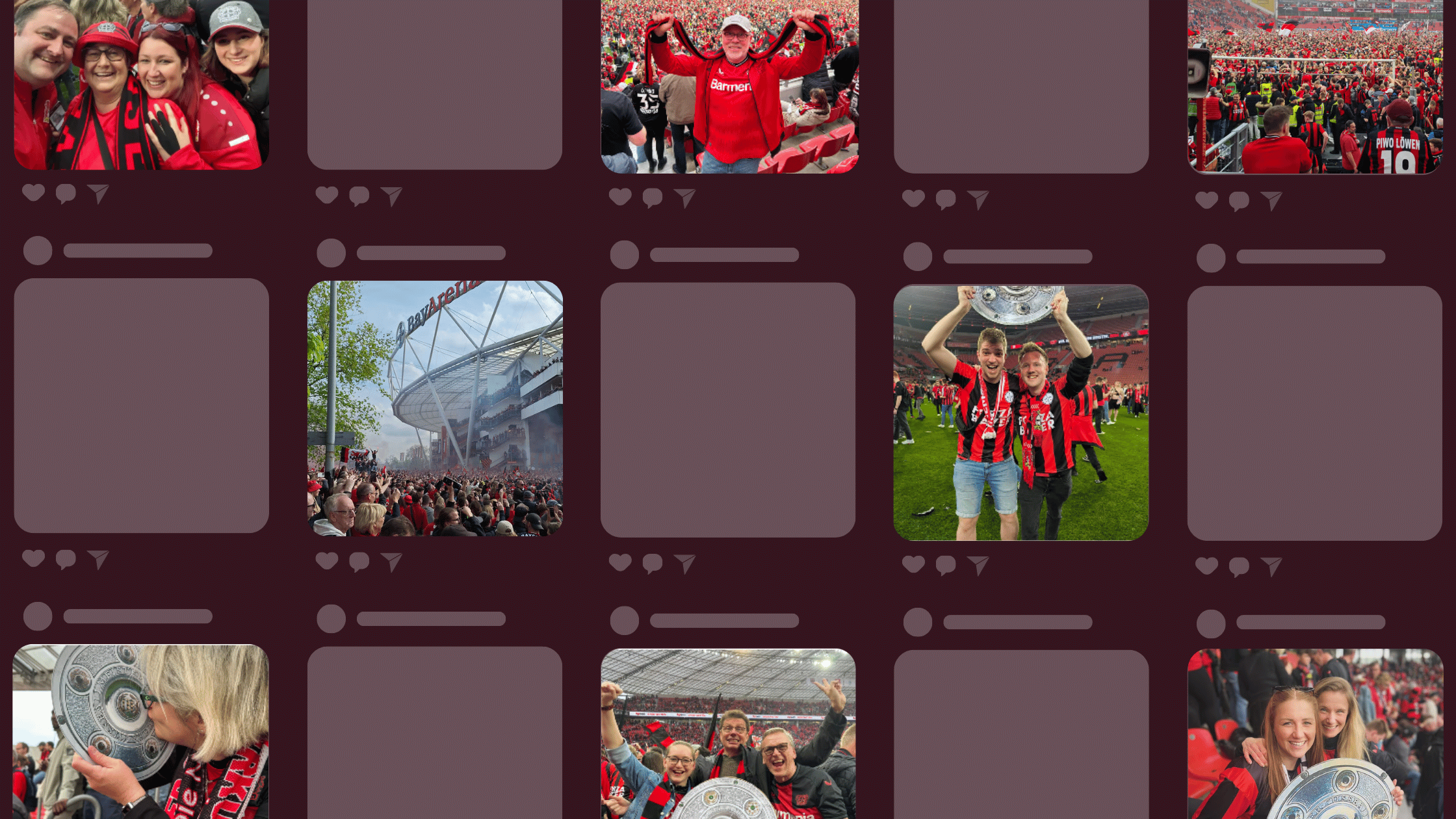
Sports fans are some of the most active social media users during live events. A live X feed on a stadium video board or venue screen gives fans a reason to post during the match and adds a visual layer to the matchday experience.

Combining X posts with content from Instagram or TikTok in a single display gives the feed a visual richness that text-only content lacks. Running the feed in a Slideshow layout works well on large video boards where content needs to be legible from a distance.
Concerts and Festivals
Music events generate a large volume of social content from attendees throughout the day. A live feed on the main stage screen or festival display captures that energy and reflects it back to the crowd.

For multi-day festivals, you can change the hashtag feed between events or stages without losing content from previous days. With Flockler, all collected posts stay in your account, so you can switch between event-specific feeds without starting from scratch.
Virtual and Hybrid Events
A live X feed is one of the most effective tools for creating a shared experience between in-person and remote attendees. Embedding the same feed on your event website and displaying it on venue screens means everyone sees the same conversation in real time.

For organizations running regular virtual events, the feed can be set up once and reused across events, with the hashtag updated each time.
Office Digital Signage
Beyond events, live X feeds are a straightforward way to keep digital screens in offices, lobbies, and public spaces up to date without manual updates. A feed pulled from your company's X account or branded hashtag automatically keeps employees and visitors up to date with the latest news and content.
How to Set Up a Live X (Twitter) Feed with Flockler
Setting up a live X feed with Flockler takes under five minutes. You don't need technical skills, and you don't need to involve a developer.
All you need is a laptop with an internet connection and a screen. Connect the laptop to the screen via cable, or use an Apple TV, Amazon Fire TV stick, or similar device to connect wirelessly. Then open your Flockler display in a browser, and you're live.
Here's how the setup works:
Step 1: Collect Posts from X
Sign up for a Flockler free trial and connect your X account. From there, you can set up an automated feed pulling posts by hashtag, keyword, or account handle.

You can create multiple feeds and display them together in one place. Most events combine X and Instagram content into a single display, and Flockler supports all major social platforms in a single feed.
Step 2: Moderate Your Feed
Once your feed is collecting posts, you choose how content is handled: auto-publish everything as it comes in, or review posts before they appear on screen.
For events with a public hashtag, moderation is worth enabling. Anyone can post with your hashtag, and Garde AI moderation can automatically filter out inappropriate or off-brand content before it reaches your display. You can also set keyword blocklists and block specific usernames.
Step 3: Choose a Layout and Customize the Design
Flockler offers four layouts to choose from:
Social Wall displays posts in a masonry-style grid. Good for feeds with varied content types and for any display that shows multiple posts at once.
Grid arranges posts in a uniform layout with fixed proportions. Works well for displays where a clean, structured look fits the event branding.
Carousel shows posts in a horizontal scroll. Useful for website embeds alongside the event page.
Slideshow cycles through posts automatically, one at a time. This is the most common choice for event screens and digital signage, since it works from a distance and doesn't require viewer interaction.
Each layout is fully customizable. You can change colors, fonts, background, and post elements to match your event's branding. With one Flockler license, you can create unlimited layouts for different screens or events, each with a unique design.

Step 4: Display on Your Screen or Website
Once your layout is ready, Flockler gives you a URL to open in a browser on any screen, and an embed code for websites and apps. Open the URL on the laptop connected to your event screen, and the feed will display and update automatically.

Note on X feed update frequency: By default, hashtag feeds update every 6 hours, pulling up to 10 posts per update, and username feeds update twice per day. For live events, you can connect your own X developer API credentials to increase this to every 5 minutes for hashtag feeds and every 20 minutes for username feeds. X uses a pay-per-use billing model for API access, which typically works out significantly cheaper than the old fixed plan pricing, especially for one-off events. Contact the Flockler team via the website chat if you need help setting this up ahead of your event.
What to Look for in a Live Twitter Feed Tool
Not every social feed tool is built for live events. Here's what matters when you're putting content on a screen in front of a room full of people:
Fast and reliable updates. A frozen screen or a feed that stops refreshing mid-event is a problem. Make sure the tool you use has a clear update frequency and that it can handle spikes in post volume when a session ends and everyone posts at once.
Strong moderation. For public hashtag feeds, content moderation isn't optional. You need to be able to block inappropriate posts quickly, either manually or automatically, without affecting the rest of the feed.
Custom branding. Every event has a look and feel. Your feed should match it. Look for a tool that lets you change colors, fonts, and layouts without needing a developer.
Unlimited events and screens on one plan. If you run multiple events during the year, paying per event adds up quickly. Flockler's subscription covers unlimited events, displays, and websites. You can change the hashtag between events without losing previously stored content.
Works on websites too. The same feed you show on screen should be embeddable on your event website. This keeps the experience consistent for remote attendees and adds live content to your event page without extra setup.
FAQs
How quickly does a live X feed update at an event?
By default, X feeds in Flockler update twice per day due to X's API rate limits. For live events requiring faster updates, you can connect your own X developer API credentials to enable more frequent refreshes. Contact the Flockler team to discuss the best setup for your event.
Can I moderate posts before they appear on screen?
Yes. Flockler lets you choose between automatic publishing and manual moderation. In manual mode, posts appear in a moderation queue where you approve or reject them before they go live. You can also use Garde AI to automatically filter content or set keyword blocklists to block specific terms.
Can I combine X with Instagram or other platforms into a single feed?
Yes. Flockler supports content from all major social platforms in a single display. Most event feeds combine X and Instagram content together. You can also add TikTok, LinkedIn, YouTube, Facebook, and more.
Do I need technical skills to set up a live X feed?
No. The setup takes under five minutes and doesn't require any coding. All you need is a laptop, a screen, and an internet connection. Flockler's live chat support is available if you need help during setup or on the day of the event.
Can I use the same Flockler subscription for multiple events?
Yes. One Flockler subscription covers unlimited events, screens, and websites. You can change the hashtag between events without losing content from previous ones, and each event can have its own custom layout and branding.
Can I show a live X feed on an event website and on screens?
Yes. Flockler provides both a browser URL for digital screens and an embed code for websites and apps. You can use the same feed in both places or create separate displays with different layouts for each.
Toni is a seasoned SaaS entrepreneur, who built Flockler before being successfully sold in 2023. Toni is passionate about social transforming the traditional marketing and helping brands to collate, analyse and display user-generated social content on their services, increasing conversion rates and dwell time.
Infrastruttura sociale che si adatta a te.
Inizia la tua prova gratuita o lascia che ti mostriamo la piattaforma in azione.