August 25, 2026
How to Add a Google Review Widget to WordPress
X minuto de lectura


Infraestructura social que se amplía con usted.
Empieza tu prueba gratuita o deja que te mostremos la plataforma en acción.
Between 93% and 97% of consumers read online reviews before making a purchase. If those reviews live only on your Google Business Profile, many of your website visitors will never see them. A Google review widget changes that by pulling your reviews directly onto your WordPress site, where they can do the most work.
In this guide, we cover why Google reviews matter for WordPress sites, how to add them manually, and how to set up an auto-updating Google review widget with Flockler in three steps.
Why Add a Google Review Widget to Your WordPress Website?
Build Trust at the Point of Decision
Website visitors form an opinion before they contact you or add something to their cart. Displaying your Google reviews on the pages where that decision happens, such as product pages, landing pages, or your homepage, puts authentic customer feedback exactly where it matters.
81% of shoppers check Google reviews first, while 86% avoid businesses with bad feedback. When reviews are visible on your website, visitors don't have to go elsewhere to find them.
Keep Your Site Fresh Without Extra Work
A live-updating Google review widget means your WordPress site automatically reflects new reviews. Every time a customer leaves a review on Google, it appears on your site automatically. For busy teams managing a lot of content, that automation removes an entire category of recurring work.
Support Local SEO
Embedding Google reviews adds fresh, user-generated content to your pages. Google values pages that stay current with relevant content, and reviews from real customers add to that. Displaying your Google Business Profile reviews additionally reinforces your local relevance for local search queries.
How to Add Google Reviews to WordPress Manually
WordPress doesn't have native Google Reviews support, so the manual method entails generating a Google Maps embed from your business listing and adding it to your site via a Custom HTML block.
Steps:
- Go to Google Maps and search for your business
- Click Share, then select Embed a map
- Copy the iframe code provided
- In WordPress, open the page where you want the reviews and add a Custom HTML block
- Paste the iframe code and publish
Limitations of the manual method:
- Only embeds a map with your listing, not a clean feed of individual reviews
- Does not auto-update when new reviews arrive
- No design customization to match your WordPress theme
- No ability to filter by rating or moderate which reviews appear
- Not functional across devices without additional CSS
For a single static embed, this works. For anything more, a dedicated Google review widget is the better option.
How to Add a Google Review Widget to WordPress with Flockler
Flockler connects directly to your Google Business Profile and creates a live-updating review feed that you can embed on any WordPress page. The setup takes under five minutes and doesn't require any coding.
Before you start: Sign up for a Flockler 14-day free trial. No credit card required.
Step 1: Connect Your Google Business Profile and Collect Reviews
After signing up, go to the Feeds tab and click Add a new automated feed. Select Google Reviews from the list of supported sources.
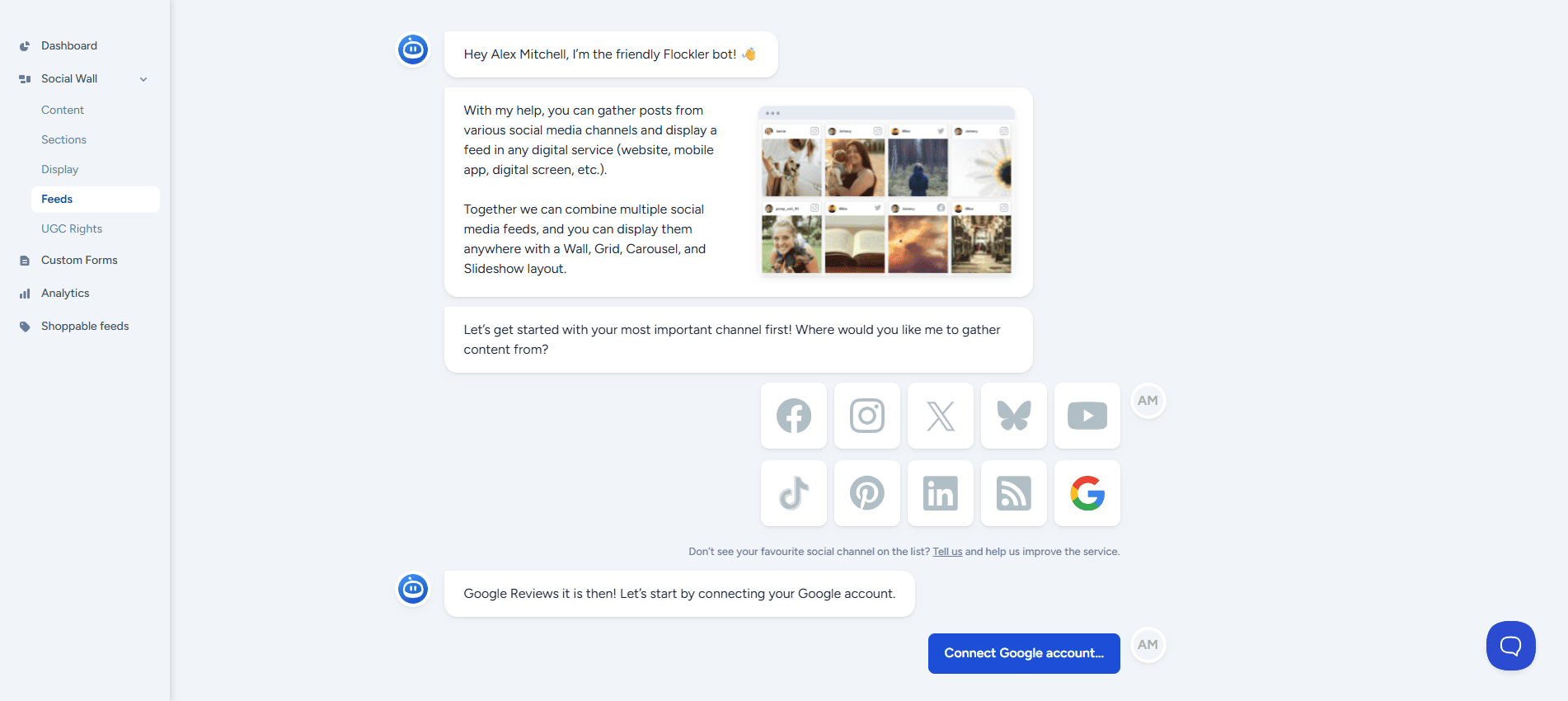
Connect your Google account. Flockler will pull up a list of the Google Business Profile locations you manage. Select one or multiple locations to display.
After selecting your location, choose how new reviews are handled:
- Auto-publish: new reviews appear on your WordPress site automatically as they come in
- Moderation queue: new reviews go to your Flockler inbox for approval before they appear on your site
If you choose moderation, you'll find incoming reviews in the Inbox under the Content tab. In auto-publish mode, you can still manually hide any individual review at any time.
Step 2: Choose a Layout and Customize the Design
Go to the Display tab and create a new layout. Flockler offers four options:
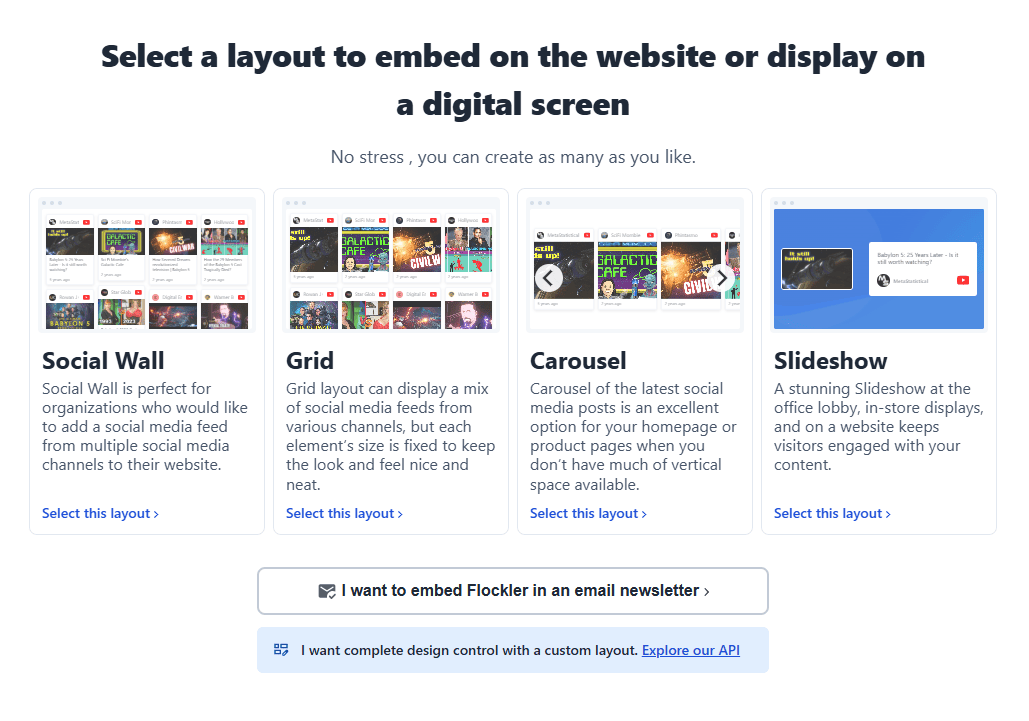
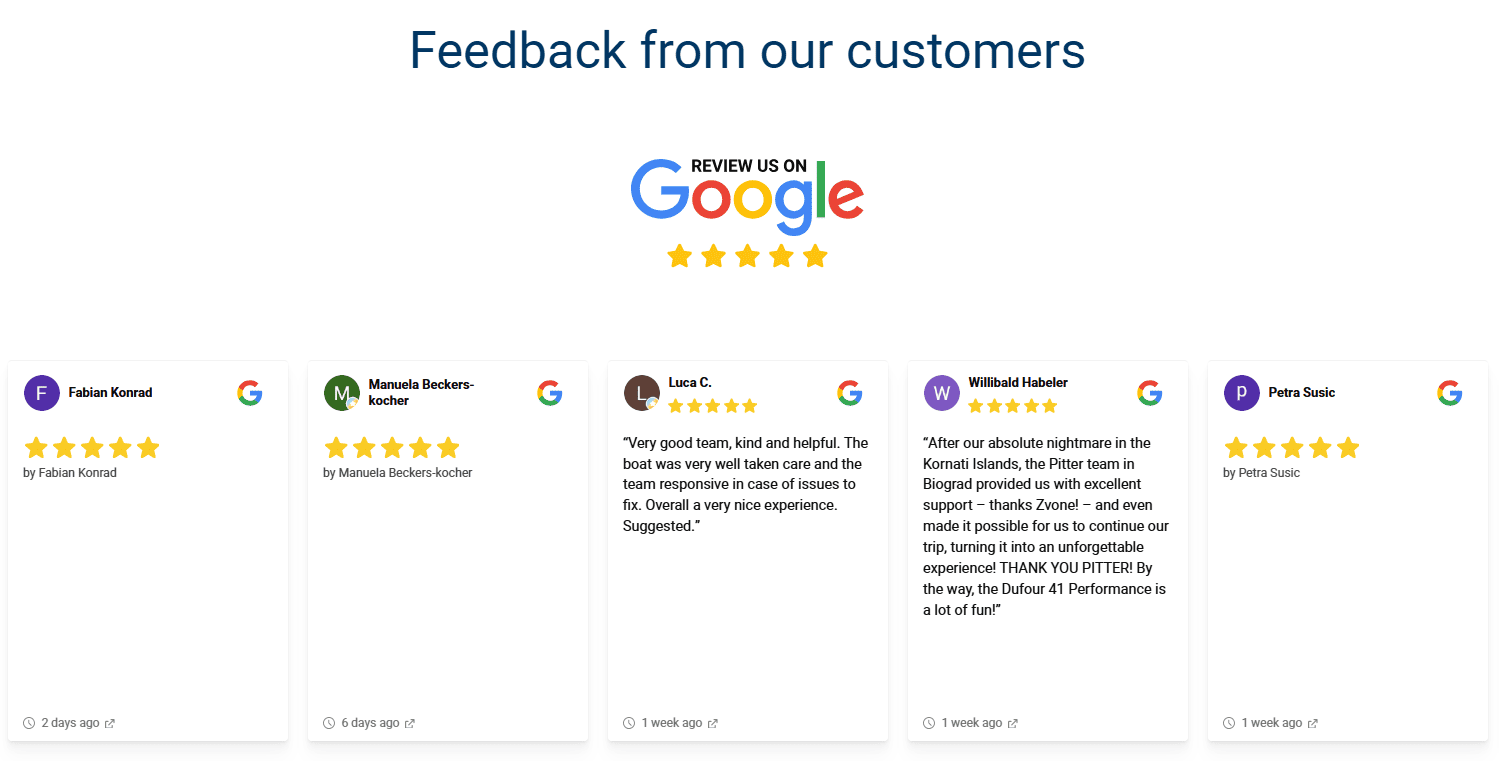
Wall displays reviews in a masonry-style layout. Good for showing a high volume of reviews and for pages where you want star ratings and review text side by side.
Grid arranges reviews in a clean, uniform structure. Works well on homepages and product pages where a structured, easy-to-scan layout fits the design.
Carousel lets visitors scroll through reviews horizontally. The most popular choice for WordPress sites looking to emphasize customer feedback without taking up too much vertical space.
Slideshow cycles through reviews automatically. Designed for digital screens and kiosks, but it also works on web pages when you want a prominent, full-width review display.
From the layout editor, you can customize colors, hide or show elements like the review date or star rating, and adjust the number of reviews shown. For more enhanced styling, your developer can apply custom CSS. With one Flockler subscription, you can create unlimited layouts and embed them across unlimited WordPress pages and domains.
Step 3: Add the Google Review Widget to WordPress
After choosing your layout, Flockler generates an embed code. Copy it from the Display tab.
In WordPress, open the page where you want the reviews to appear. Add a Custom HTML block, paste the Flockler embed code inside it, and publish or update the page.
If you're using the Classic Editor, switch to the Text tab and paste the embed code directly into the page content.
If you're using Elementor, drag an HTML widget onto the page, paste the embed code into the HTML Code field, and update the page.
Your Google review widget is now live and will update automatically as new reviews come in.
Best Practices for Displaying Google Reviews on WordPress
Place reviews where decisions happen. Homepage sections, product pages, and landing pages are the highest-impact locations. Visitors reading about your product or service are the most likely to be influenced by what other customers have said.
Use moderation for quality control. If you receive occasional off-topic or unrepresentative reviews, the moderation queue lets you approve only the reviews you want displayed. Auto-publish works well for businesses with consistently high-quality reviews.
Keep the feed current. 73% of consumers only consider Google reviews written less than a month ago, so an auto-updating feed that shows recent reviews is more valuable than a static display of older ones.
Match the widget to your theme. Use Flockler's customization settings to align the widget colors and layout with your WordPress theme. A review widget that looks native to the site carries more visual weight compared to one that looks like a third-party insert.
Combine locations if you have multiple. If your business has more than one Google Business Profile location, Flockler can combine reviews from all of them into a single display. Useful for brands with several offices, stores, or service areas.
Frequently Asked Questions
Do I need a WordPress plugin to add a Google review widget?
No. Flockler works via a standard HTML embed code that you paste into any Custom HTML block in WordPress. You don't need to install or maintain a plugin. If you already have the Flockler WordPress plugin installed for social media feeds, the same embed code works for Google reviews too.
Can I display reviews from more than one Google Business Profile location?
Yes. When connecting your Google account in Flockler, you can select multiple locations. You can combine reviews from all of them into a single display or keep them in separate feeds.
Does the Google review feed update automatically?
Yes. Once connected, Flockler automatically pulls in new reviews. You don't need to manually update the WordPress page or re-embed the widget when new reviews arrive.
Can I choose which reviews appear on my site?
Yes. You can use the moderation queue to approve reviews before they go live, or use auto-publish and manually hide any individual review at any time. You can also filter by star rating to display only reviews above a certain threshold.
Can I combine Google reviews with social media content in one feed?
Yes. Flockler supports content from multiple platforms in a single display. You can combine Google reviews with Instagram posts, Facebook reviews, or other social content in one feed. For more on embedding review content alongside social feeds, see our guide on how to embed Google reviews on a website.
How many WordPress pages can I add the widget to?
As many as you need. One Flockler subscription covers unlimited pages, views, and domains.
Ready to add a Google review widget to your WordPress site? Start a free 14-day trial with Flockler and have your reviews live in minutes.
Want to collect more reviews to display? Read our guide on how to ask for Google reviews.
A true growth operator with extensive experience across crowdsourcing, affiliate programs, and social media aggregation. Brooke is the CEO if Flockler and cofounder of the marketing agency Northweather and has worked with global brands including LEGO. With international experience spanning SaaS, marketing, and product, she brings sharp expertise in strategy, execution, and driving results through global cross-functional teams.
Infraestructura social que se amplía con usted.
Empieza tu prueba gratuita o deja que te mostremos la plataforma en acción.