January 7, 2022
How to Embed a Twitter Feed on WordPress
X minuto di lettura

.png)
Infrastruttura sociale che si adatta a te.
Inizia la tua prova gratuita o lascia che ti mostriamo la piattaforma in azione.
If you want to embed a single tweet on a blog post, WordPress has a couple of quick built-in options. If you need a live-updating feed pulling from multiple X accounts or hashtags, with custom design and content moderation, you need a different approach.
This guide covers all three methods, starting with the simplest and building up to the right solution for businesses and teams managing X content at scale.
Method 1: Embed a Single X Post Using the Native Embed Tool
X provides a free embed tool at publish.twitter.com that generates an embed code for any individual post. This is the quickest option if you want to drop a specific post into a WordPress page or article.
How to do it:
- Find the post on X you want to embed. Click the three-dot menu and select "Embed post."
- You'll be taken to X's embed page. Click "Copy Code."
- In WordPress, open the page or post where you want to add the tweet.
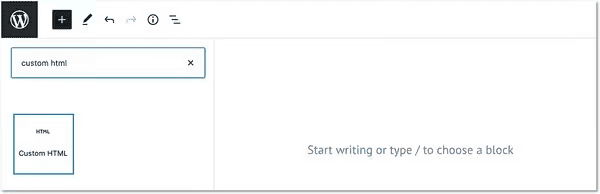
- Add a Custom HTML block and paste the embed code inside it.
- Preview and publish.

Limitations:
- Only works for individual posts, not feeds
- Fixed design with no way to match it to your WordPress theme
- No moderation or filtering
- Cannot combine content from multiple accounts or hashtags
Method 2: Embed a Single Tweet Using the WordPress Block Editor
WordPress's Block Editor has a built-in option for embedding individual tweets directly within content. This works for both the Gutenberg block editor and self-hosted WordPress sites.
How to do it:
- Open the WordPress post or page where you want to embed the tweet.
- Click the "+" icon to open the block inserter.
- Search for and select the Twitter/X block.
- Paste the tweet URL into the field and click Embed.
Limitations:
- Same as the native embed: single posts only, no custom design, no moderation, no multi-source feeds
Method 3: Embed a Twitter Feed on WordPress with Flockler
For anything beyond a single tweet, Flockler is the right tool. It lets you pull posts from any public X account or hashtag, combine multiple sources, moderate content, and display a live-updating feed in a fully customized layout on any WordPress page.
This is the approach used by businesses, agencies, and teams who need a professional X feed that fits their site's design and updates automatically.
Before you start: Sign up for Flockler's 14-day free trial. No credit card required. Then download and install the Flockler WordPress plugin from the WordPress plugin directory.
Step 1: Set Up Your X Feed
Log in to Flockler and navigate to the Feeds tab. Click "Create a new automated feed" and select X (Twitter) as your channel.
Connect your X account. You don't need to be an admin of any specific account. After connecting, choose whether you want to display posts from a specific username or by hashtag.

You can create multiple feeds and combine them in a single display. Flockler also supports content from Instagram, TikTok, LinkedIn, YouTube, Facebook, Bluesky, and more, so if you want to mix X content with other social channels, you can do that in the same feed.
After selecting your source, Flockler will ask whether you want to publish posts automatically or moderate them before they appear on your site. For hashtag feeds where anyone can post with your tag, moderation is recommended.
Step 2: Choose a Layout and Customize the Design
Go to the Display tab in Flockler and create a new layout. There are four options:
Social Wall displays posts in a masonry-style layout. Good for feeds pulling from multiple sources and for pages where you want captions visible alongside posts.
Grid arranges posts in a uniform, fixed-size layout. The most popular choice for WordPress homepages and product pages.
Carousel shows posts in a horizontal scroll. Works well in sections where vertical space is limited.
Slideshow cycles through posts automatically. Designed for digital screens and events, but works on web pages too.
Once you've selected a layout, customize the colors, fonts, spacing, and post elements to match your WordPress theme. You can create an unlimited number of layouts, each with a unique design, and display them across unlimited pages and domains.

Step 3: Add the Feed to WordPress
After creating your layout, Flockler gives you two options for adding it to WordPress.
Using the shortcode (with the Flockler plugin):
- In Flockler, click "Add to WordPress" for your layout, then copy the shortcode.
- In WordPress, open the page or post where you want the feed to appear.
- Add a Custom HTML block (Block Editor) or switch to Text mode (Classic Editor) and paste the shortcode.
- Publish or update the page.
Using the standard embed code:
If you prefer not to use the plugin, Flockler also provides a standard HTML embed code that you can paste into any Custom HTML block in WordPress, or into a text widget in your sidebar or footer.
Adding a feed using Elementor:
- Open the page in Elementor.
- Search for the HTML widget in the left panel.
- Drag it onto the page.
- Paste your Flockler shortcode or embed code into the HTML Code field.
- Update the page.
Once live, the feed updates automatically as new posts that match your source settings come in. You don't need to touch the WordPress page again.
Native Embed vs Flockler: Which One Is Right for You?
If you're embedding one specific tweet to add context to a blog post, the native embed or Block Editor method is fine. If you need a live, branded X feed that pulls from multiple sources and updates automatically, Flockler is the right tool.
FAQs
Do I need the Flockler WordPress plugin to embed an X feed?
No. The plugin makes it easier by letting you use a shortcode, but Flockler also provides a standard HTML embed code that works in any Custom HTML block or text widget in WordPress without installing anything.
Can I display X posts from accounts I don't own?
Yes. With Flockler, you can pull posts from any public X account or hashtag without needing admin access. You only need your own X account to connect.
Can I combine an X feed with Instagram or other platforms?
Yes. Flockler supports 15+ social platforms in a single display. You can mix X content with Instagram, TikTok, LinkedIn, YouTube, Facebook, Bluesky, and more.
Does the feed update automatically?
Yes, once set up, the feed updates automatically. Note that X feed update frequency differs from other platforms due to X's API limits. By default, hashtag feeds update every 6 hours, pulling up to 10 posts per update, and username feeds update twice per day. For faster updates, you can connect your own X developer API credentials. See the full details on X feed update times.
How many WordPress pages can I add the feed to?
As many as you need. One Flockler license covers unlimited pages, views, and domains. You can use the same display on multiple pages or create separate displays with different layouts for different sections of your site.
Can I moderate posts before they appear on my WordPress site?
Yes. Flockler lets you choose between automatic publishing and manual moderation. You can also use Garde AI moderation to automatically filter out inappropriate or off-brand content, or set keyword blocklists and block specific usernames.
Toni is a seasoned SaaS entrepreneur, who built Flockler before being successfully sold in 2023. Toni is passionate about social transforming the traditional marketing and helping brands to collate, analyse and display user-generated social content on their services, increasing conversion rates and dwell time.
Infrastruttura sociale che si adatta a te.
Inizia la tua prova gratuita o lascia che ti mostriamo la piattaforma in azione.