September 12, 2018
How to Add an Instagram Mentions Feed on Your Website
X minuto di lettura


Infrastruttura sociale che si adatta a te.
Inizia la tua prova gratuita o lascia che ti mostriamo la piattaforma in azione.
Your happiest customers are already doing your marketing for you. Every time someone tags your brand in a post, that's free, genuine proof that people love what you sell. The catch is that those mentions disappear into Instagram notifications so fast that your website never sees them. Knowing how to add an Instagram mentions feed on your website turns that lost content into a scrolling wall of social proof that updates on its own.
It pays off, too. Roughly 79% of shoppers say user-generated content influences their buying decisions. Below, you'll learn what mentions really are, how to set up the feed in minutes, how to moderate it, and how to get more tags rolling in.
What an Instagram Mentions Feed Actually Shows
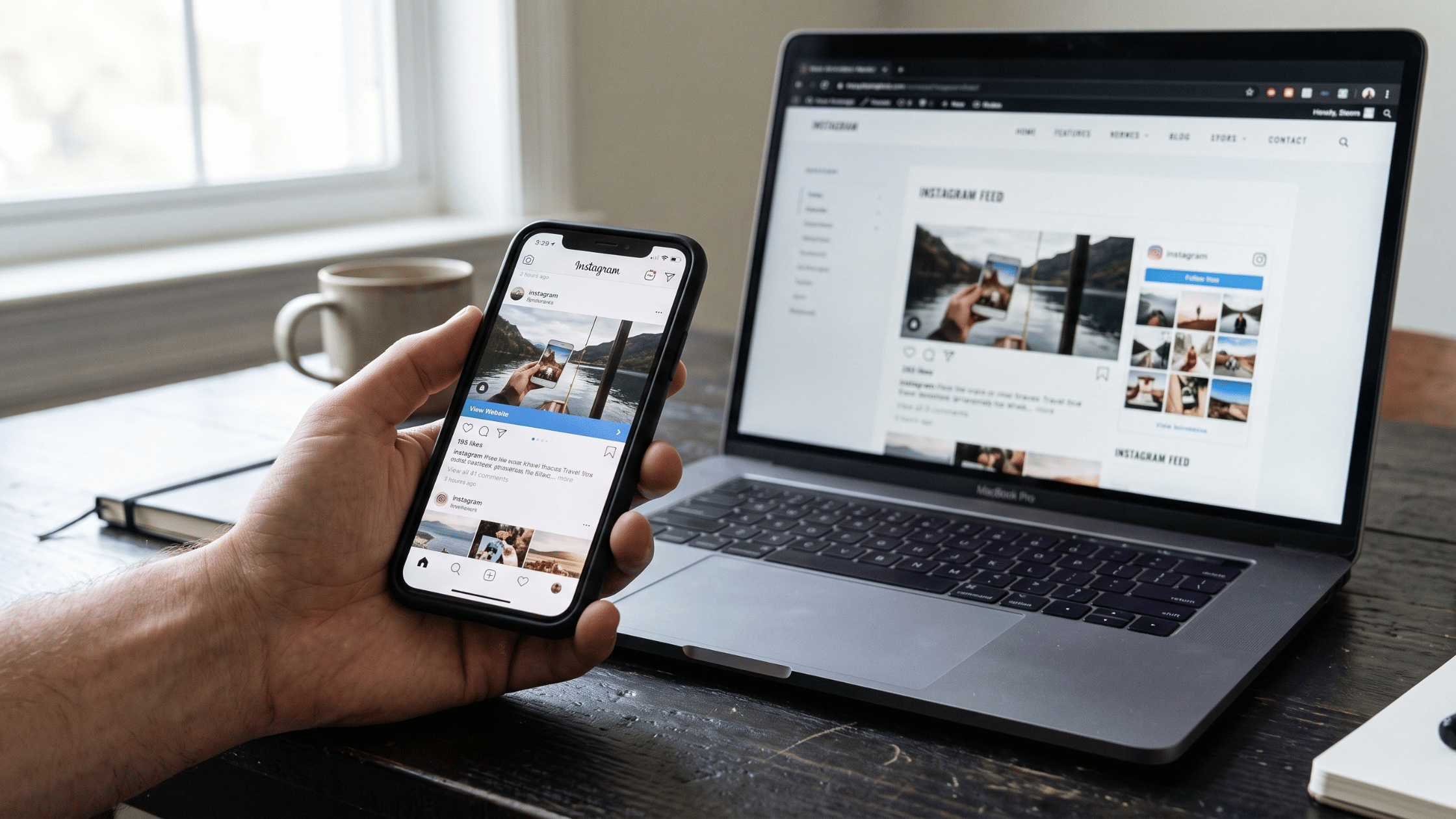
An Instagram mentions feed pulls in public posts where people tag or reference your business account, then displays them together on your site.
There is an important distinction worth clearing up before you start. On Instagram, a "tag" and a "mention" are not the same thing, even though people use the words interchangeably.
- A tag is added to the image itself. Only the person posting can add it, and tagged posts collect in a dedicated tab on your profile.
- A mention uses the @ symbol in a caption, comment, or Story. Anyone can mention you, and it sends a notification.
So do Instagram mentions show up on feed views inside the app? Not in a lasting way. Mentions appear in your notification feed, which only shows the 100 most recent notifications. A mention made in a caption or comment will not appear on the mentioned account's profile either. That means important shoutouts can vanish before you ever see them.
This is the real reason to build an Instagram mentions feed on your website. A social media aggregator captures both tagged posts and account mentions as they happen, stores them in one place, and saves you from manually hunting through notifications. Nothing gets lost, and every mention becomes content you can use.
Why Display Instagram Mentions on Your Website
Mentions are some of the most persuasive content you own, because your customers created them, not your marketing team.
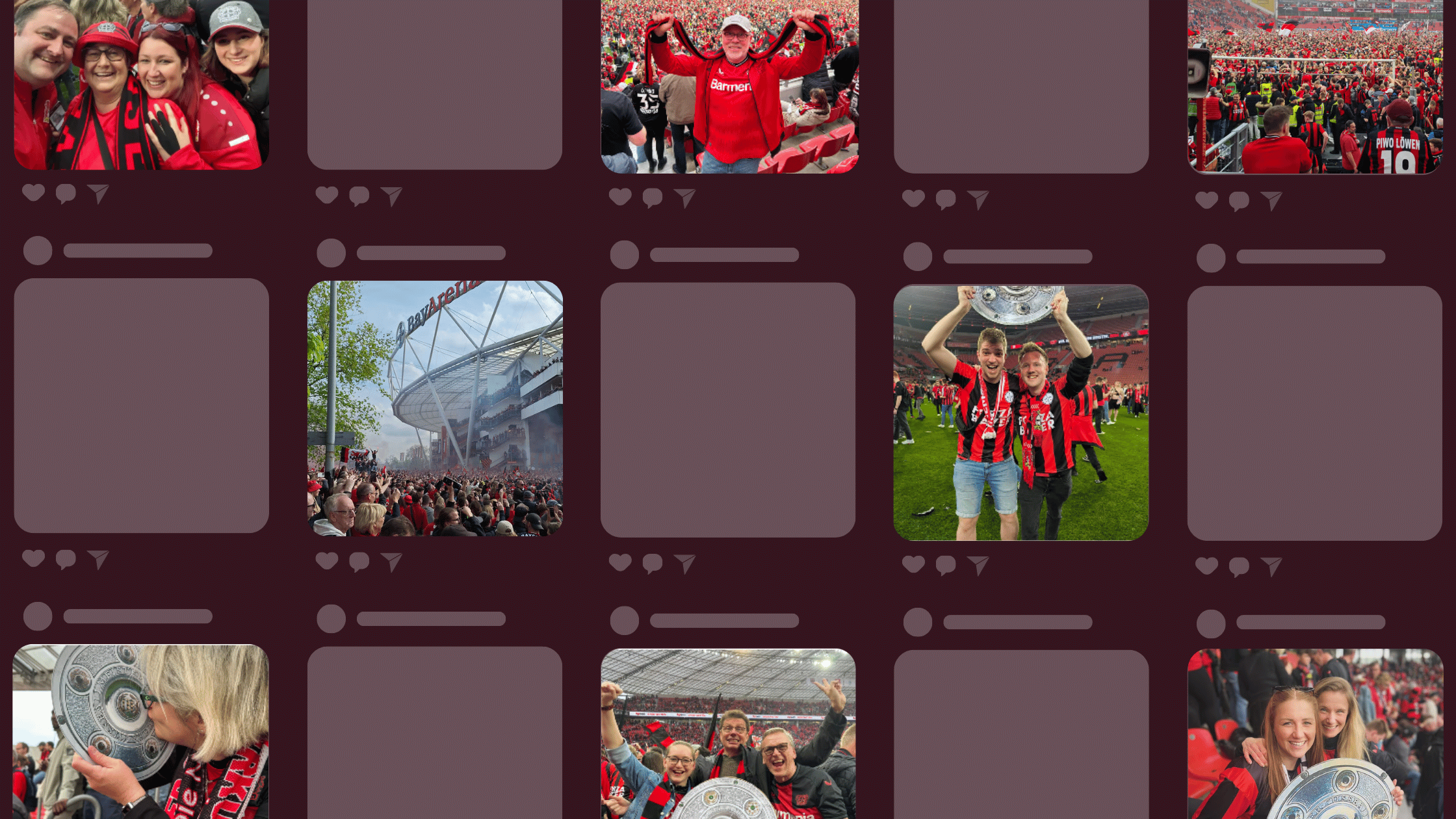
The numbers back this up. Recent data show that website visits to pages featuring user-generated content were 4.11x higher than to pages without it in early 2026, with UGC-driven conversions reaching 6.73x. A few specific benefits stand out:
- Stronger trust: A grid of real customer photos signals that people actually use and like your product. Roughly 73% of shoppers say user-generated content increases their purchasing confidence.
- More reach: When friends of a customer click through a mention, they land on your profile. That introduces your brand to people who would never have found you through ads.
- Fresh content with no extra work: Your customers keep posting, so your feed keeps updating. You get a steady stream of new visuals without commissioning a single shoot.
- Better ad targeting: Profile visits from mentions give you an audience you can retarget later, which makes your paid campaigns work harder.
Displaying an Instagram mentions feed on your website also keeps people on your page longer, and longer visits tend to send positive signals to search engines.
Before You Begin: 3 Quick Checks
Setting up a mentions feed has a few requirements, and getting them right first saves time later.
Instagram only shares mention and tag data through business-connected accounts. Here is what to check:
- An Instagram Business or Creator account, not a personal one.
- That account is connected to a Facebook Page where you have admin access.
- A social media aggregator that supports Instagram mentions, since Instagram offers no native way to embed a live mentions gallery.
Instagram's own embed option only works for single posts and does not update automatically. To pull in mentions automatically and keep them current, you need a dedicated tool. Flockler can handle this and works across 10+ social platforms, so you can combine Instagram with other channels into a single feed if you want.
Native Embed vs a Social Media Aggregator
Before building anything, it helps to know why the free Instagram option falls short for a mentions feed.
Instagram lets you embed a single post by copying its embed code. That works fine for showing one specific post, like a milestone announcement. It breaks down quickly for mentions, though, for three reasons:
- No automation: You would have to find each new mention by hand, copy its code, and paste it in. Every single time.
- One post at a time: The native embed shows individual posts, not a continuous gallery that updates automatically.
- No moderation: You cannot filter, hide, or block anything. Whatever you paste is what shows.
A social media aggregator tool solves all three. It connects once, automatically pulls mentions, lets you moderate them, and displays everything in a layout you control. For a living wall of customer content, an aggregator is the only practical route.
How to Add an Instagram Mentions Feed on Your Website
The process breaks down into four clear steps, and most people finish in well under ten minutes.
Here is how to add an Instagram mentions feed on your website using Flockler (in 4 easy steps).
1. Connect Your Instagram Business Account
Start by making sure your Instagram account is set to Business or Creator and linked to your Facebook Page. You can switch account types inside the Instagram app settings, then connect it to your Page through Facebook's account controls.
This connection is what lets the tool read your mentions and tagged posts. Without it, Instagram shares nothing. If your account is still personal, this step takes about two minutes and is free.
2. Create Your Mentions Feed
Log in to Flockler and open the Automated Feeds section. Choose Instagram as your channel, connect the Facebook account tied to your Business profile, then select to pull in mentions of your account.
Each source you add counts as one feed. You can run a mentions feed alongside an Instagram hashtag feed or other channels and blend them into a single display. Save the feed once it is set, and it will start collecting posts right away.
3. Choose a Layout and Copy the Embed Code
Head to the Display tab and pick a layout. Your choice shapes how the feed feels on the page:
- Grid suits homepages and works well for showing volume.
- Slider or carousel fits tight spaces and lets visitors swipe through posts.
- Wall is ideal for events, campaigns, and big screens.
The design adjusts automatically for mobile, tablet, and desktop devices, and you can match it to your brand colors using custom CSS. Copy the embed code, then paste it into any page on your website, webshop, or digital signage. No developer needed.
4. Moderate What Appears
Open posts can be unpredictable, so moderation matters. You can hide individual posts with one click, or block specific usernames and keywords so they never reach your feed.
For higher volumes, social content moderation reviews incoming content automatically and filters out anything inappropriate before it goes live. That keeps your feed clean without constant manual checks, which matters most during busy campaigns when posts arrive fast.
Where to Place Your Instagram Mentions Feed for the Best Results
Placement decides how much work your feed actually does. The same gallery performs very differently on a homepage versus a product page.
Here are the spots that tend to convert:
- Homepage: A feed near the top or middle of your homepage greets visitors with proof that real people use your product. It sets a trusting tone before they read a word of copy.
- Product pages: Customer photos placed next to a product serve as visual reviews. Shoppers see how the item looks in real life, which eases hesitation right at the point of decision.
- A dedicated UGC or gallery page: Some brands build a full page around customer content. It gives campaigns a home and a link you can share.
- Landing and campaign pages: Pairing a mentions feed with a specific promotion ties your offer to real social proof.
Many e-commerce brands take this further with shoppable feeds, where customer photos link straight to the products shown. A visitor sees someone using an item, clicks, and buys, all without leaving the page.
5 Tips to Make Your Mentions Feed Convert
A feed that just sits there looks nice. A feed built with intent drives action.
Keep these points in mind as you set yours up:
- Moderate for quality and safety: Approve posts that look good and fit your brand, not only those that avoid problems. A curated wall beats a cluttered one.
- Keep it fresh: Automatic updates handle this, but check in now and then to make sure your best content is surfacing.
- Design for mobile first: Most visitors will see your feed on a phone, so test how it looks on a small screen before publishing.
- Add a light call to action: A simple line like "Tag us to be featured" turns viewers into contributors and grows your feed over time.
- Mix mentions with hashtags: Combining both gives you more content and captures people who reference you in different ways.
How to Get More Instagram Mentions for Your Brand
A mentions feed only shines when people are actually tagging you, so a little encouragement goes a long way.
Most brands have more potential mentions than they realize. These approaches help bring them out.
- Ask after a purchase: Add a simple call to action to order confirmations, packaging inserts, or follow-up emails inviting customers to share and tag you.
- Activate your team: Employees are an easy, often-overlooked source of authentic posts. A light employee advocacy effort can produce a steady flow of mentions.
- Run a contest: A well-planned campaign that asks people to tag your account in exchange for a chance to win drives a burst of fresh content.
- Create a photo-worthy moment: Physical spaces with a striking backdrop, a branded sign, or a fun prop give visitors a reason to post and tag you on the spot.
Each new mention feeds straight into your display, so these tactics compound over time. The more you collect, the richer your social proof becomes.
Flockler Pricing and Plans
Flockler runs on a straightforward subscription, and every plan includes mentions feeds.
Pricing starts at $129 per month for the Basic plan (8 feeds), $229 per month for the Business plan (15 feeds), and $379 per month for the Pro plan (30 feeds). Annual billing lowers these rates, with Basic starting around $110 per month when paid yearly. A Premium plan covers unlimited feeds and API access for larger organizations.
Garde AI moderation and automated alt text are included starting with the Business plan. Every plan includes unlimited layouts, page views, and users. You can test the platform with a 14-day free trial that requires no credit card.
Conclusion
Customer mentions are proof that you cannot fake, and most of them currently slip past unseen in your notifications. Pulling them into one feed puts that proof to work on the pages where people actually decide to buy.
The setup is simple. Set your account to Business, connect it to your Facebook Page, then build your first mentions feed and drop it onto a page that matters, like your homepage or a key product page. From there, let the data guide you. Watch which posts your visitors respond to, then adjust your layout, placement, and moderation to match what works.
Small, steady tweaks turn a basic feed into a genuine sales asset over time. The sooner you start collecting, the sooner those customer posts begin earning their place on your site.
FAQs
Do Instagram Mentions Show Up on Feed?
Mentions appear only in your Instagram notifications feed, which holds the 100 most recent items, so older mentions drop off. They do not stay on your profile. A mentions feed tool captures and permanently stores them, so none get lost.
What Is the Difference Between a Tag and a Mention?
A tag is placed on the image and can only be added by the person posting. A mention uses the @ symbol in a caption, comment, or Story and can be added by anyone. Both can feed into your website display.
Is a Business Account Required to Embed an Instagram Mentions Feed?
Yes. Instagram shares mention and tag data only from a Business or Creator account connected to a Facebook Page you manage. A personal account will not work.
Can Mentions Be Moderated Before They Appear on a Site?
Yes. You can hide individual posts, block usernames or keywords, or use AI moderation to filter content automatically before it goes live on your feed.
Does the Instagram Feed on the Website Update Automatically?
Yes. Once connected, new public mentions and tagged posts flow into your feed automatically, so your website display stays current without manual updates.
Can a Mentions Feed Be Added Without Coding?
Yes. You copy a single embed code and paste it into your page. It works with common website builders and content systems, and the layout adjusts to any screen size automatically.
A true growth operator with extensive experience across crowdsourcing, affiliate programs, and social media aggregation. Brooke is the CEO if Flockler and cofounder of the marketing agency Northweather and has worked with global brands including LEGO. With international experience spanning SaaS, marketing, and product, she brings sharp expertise in strategy, execution, and driving results through global cross-functional teams.
Infrastruttura sociale che si adatta a te.
Inizia la tua prova gratuita o lascia che ti mostriamo la piattaforma in azione.