January 10, 2023
Instagram Widget for Website: A Step-by-Step Setup Guide
X minute de lecture


Une infrastructure sociale qui évolue avec vous.
Commencez votre essai gratuit ou laissez-nous vous montrer la plateforme en action.
You already post on Instagram, so why upload those photos to your website all over again? An Instagram widget for website pages pulls your posts straight onto your site and keeps them updating on their own. Your page always shows your latest content, and you don't do anything after the initial setup.
There's one thing to sort out first. Instagram lets you show four kinds of content: your own posts, a hashtag, mentions, and Stories. All of them connect through Facebook now, since Instagram requires it for any outside tool. Your Facebook account simply needs admin rights to a Page linked to an Instagram Business account, and both are free to set up.
Below, you'll find the three setup steps, which feed type suits which page, how to add the widget to Joomla and other platforms, and whether a free option is enough.
Four Types of Instagram Feeds You Can Display
A widget can show four kinds of Instagram content. Pick the one that fits your page before you build, so you don't have to redo it.
- Account feed: your own posts. Great for a homepage or an about page where you want to show your latest content. This is the easiest to set up.
- Hashtag feed: every public post that uses a tag, from anyone. Run a campaign hashtag, and customer photos land on your site on their own. No need to ask each person for permission.
- Mentions feed: posts where someone tags you. New tags show up automatically, so a reviews page stays fresh without you lifting a finger.
- Stories feed: your Stories from the last 24 hours. After that, they're gone. This is perfect for a flash sale or a live event.
All four feed types connect the same way, through Facebook, since Instagram now requires it for every third-party tool. Your Facebook account needs admin rights to at least one Page with a linked Instagram Business account, and both are free to set up. After that, you can display your own content, any public Business account, a hashtag, or mentions.
Where to Place an Instagram Widget on a Website
Where the widget sits decides what it should do, so pick the spot before the layout.
- Put a Wall or Grid near the top of your homepage. It shows the brand is active and gives visitors a reason to keep scrolling.
- On a product page, a feed of real customers using the product does more than another studio shot ever could.
- For a campaign or an event, a Carousel or Slideshow updates live as people post. About and team pages work better for behind-the-scenes content than for selling.
Agencies usually settle on one or two spots and reuse them on every client build. That repeatability is why an Instagram widget for websites holds up across a whole client roster.
How to Create an Instagram Widget for Website Use in 3 Steps
The setup to embed the Instagram feed on the website is quick. These steps use Flockler, a social media aggregator that builds and refreshes the feed for you.
Step 1: Connect Your Instagram Account and Content Source
Log in to Flockler, open the Feeds tab, and click to add a new feed. Select Instagram, then connect through Facebook. Instagram requires this for any third-party tool, so there is no separate Instagram password. Your Facebook account needs admin rights to at least one Page with a linked Instagram Business account, both free to create. Once connected, you can display your own posts, any public Business account, a hashtag or mentions feed, or Stories from your own account. Pick your source, and Flockler starts pulling posts within minutes.
Step 2: Choose a Layout for Your Instagram Feed Widget
Head to the Display tab and pick a layout: Wall, Grid, Carousel, or Slideshow. Each one resizes itself to fit any screen, so your Instagram feed widget for website pages looks right on phones and desktops alike. You can set how many posts load first, show or hide details like captions and likes, and add a CTA button to any post.
Step 3: Embed the Widget on Your Website
Copy the code from Flockler's Display tab and paste it where you want the feed to appear. Add it to a Custom HTML block, a theme file, or pass it to whoever manages your site. This single step is all you need to embed an Instagram feed on a website. From then on, the feed refreshes itself each time you post. It loads in the background and pulls images from a CDN, so your page stays fast.
Add an Instagram Feed Widget to Joomla and Other Platforms
The three steps stay the same on every platform. Only the last one, where you paste Flockler's embed code, changes from one to the next.
On Joomla, open Articles or Modules in the admin and click the Code button in the editor. Paste the embed code from Flockler's Display tab there. Choose an Article for a single page, or a Module to display the feed site-wide, such as in a footer. Either route for embedding an Instagram feed in Joomla takes a few minutes, and you avoid installing a plugin.
The same Flockler code works on the other major platforms:
- WordPress, in a Custom HTML block
- Shopify, by editing a theme section
- Wix and Squarespace, in their embed or code blocks
- Webflow, Drupal, TYPO3, and Weebly, each in its own embed field
Because the code never changes, a single Instagram feed widget can power your website and a signage screen from the same source. That helps when one campaign runs across your site, an app, and a venue at the same time.
Combining Your Instagram Widget With Other Social Media Feeds
Most brands post on more than one network, and a single widget can pull from several at once. One feed can display Instagram alongside TikTok, Facebook, YouTube, LinkedIn, or X.
This helps in two ways. First, it keeps the feed active. Suppose you post to Instagram twice a week but to TikTok every day. Combine both into one feed, and the page looks far busier than Instagram alone would. Second, the page reflects where your audience actually spends time. A sports team can mix YouTube clips with Instagram fan photos in a single Wall, with no second widget required. You set the mix when you build the Instagram feed widget for website pages, and you can adjust it later without changing any code on your site.
Free vs. Paid Instagram Widgets for Websites
Many Instagram widgets are free. Whether a free Instagram widget for website use suits you depends on how many sites you run and how much traffic they bring in.
Most free tools include the same basic limits:
- One connected source, so you can show a single account or hashtag
- A low monthly view cap, which a busy page can hit quickly
- A "powered by" badge on the feed, which you cannot remove on the free tier
For a single page with light traffic, that trade works well.
Flockler does not offer a free forever plan. Paid plans start at $129 a month, and the 14-day trial requires no credit card. The paid features matter once you move past one feed:
- Uncapped views, no matter how much traffic the site receives
- Garde AI moderation, which screens posts for you instead of doing it manually
- Automated alt text, which supports accessibility and compliance
- Bulk feed creation through the API on Premium and Agency plans, rather than building each feed one at a time
Most agencies pass the free limits within their first project. Once you add up the hours spent working around those limits, a free Instagram widget for websites often becomes the more expensive option.
Instagram Widgets for Websites: Real Examples Worth Studying
Two retail brands show what an Instagram widget for websites can achieve when the feed is built to sell, not simply to decorate a page.
Alo Yoga: Shoppable Customer Photos
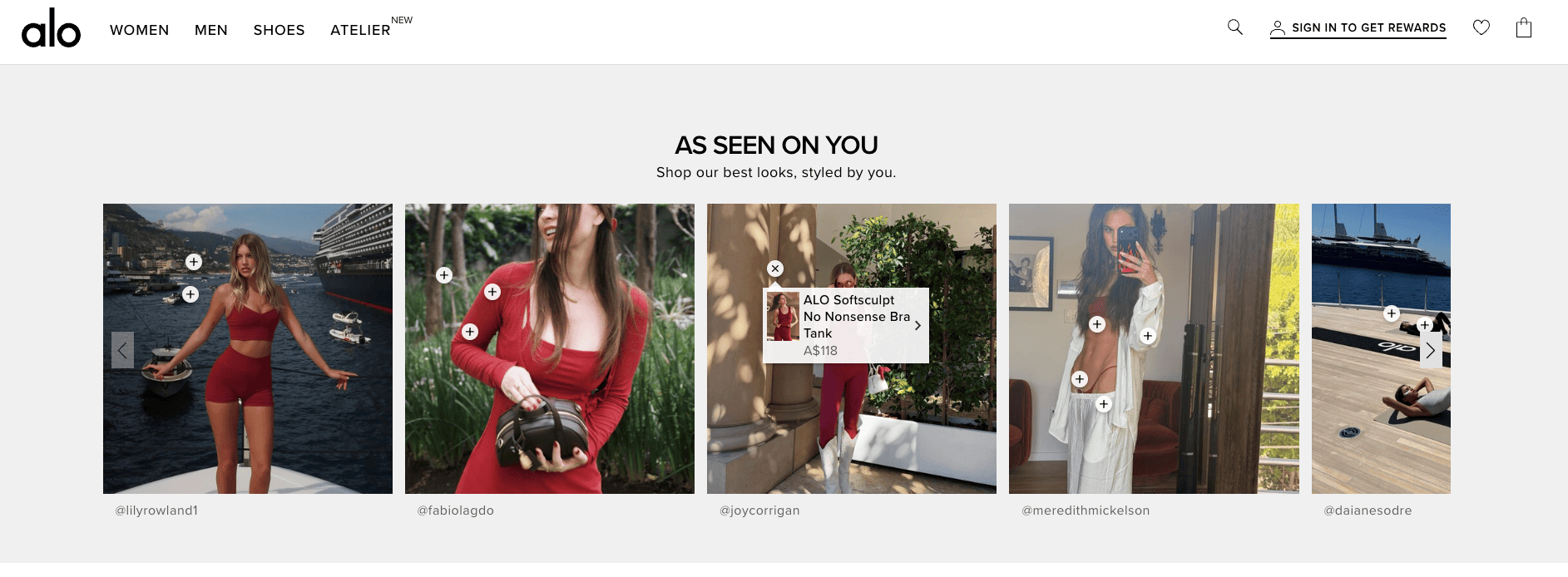
Alo Yoga runs an "As Seen On You" section on its site, with the tagline "Shop our best looks, styled by you." The feed is a horizontal carousel of customer photos, each credited to the creator's Instagram handle. Tap the plus icon on any image to open a product card showing the exact item and its price.
The brand collects this content through customer tagging, then features the strongest posts where shoppers are already looking. Visitors see real people wearing the clothes and can move from a photo to the product page with one click. For an apparel brand on Shopify, that is one of the most direct ways to turn a photo into a sale.
Lulus: A "Shop Our Feed" Grid
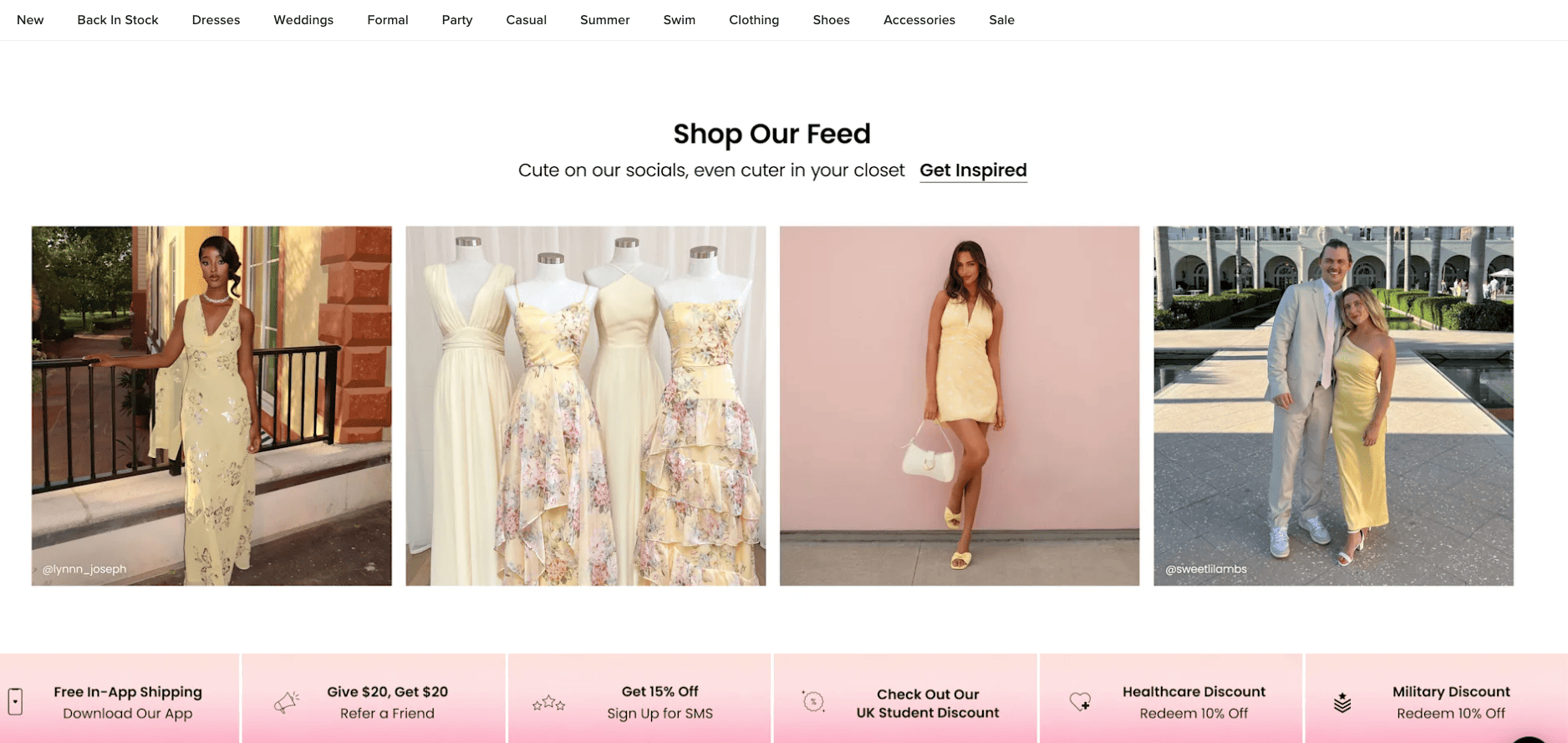
Lulus, a direct-to-consumer fashion label, runs a "Shop Our Feed" section with the tagline "Cute on our socials, even cuter in your closet" and a "Get Inspired" link. The feed shows a row of large customer photos, each credited to the shopper's Instagram handle. Lulus presents these photos as outfit inspiration rather than advertising, and every image links to a product page. It works because it answers the two questions a shopper has: how does this look on a real person, and where can I buy it?
Why an Instagram Widget for Website Engagement Pays Off
Why bother adding an Instagram widget to website pages? Two reasons. People trust photos from real customers, and the feed keeps itself up to date. Shoppers lean on other people's content when they decide what to buy. In one survey, 77% said user-generated images sway their purchases.
The numbers back it up. Pages with user content have converted up to 6.7 times better than pages without it in early 2026 benchmarks. A lot of that content comes from Instagram, where 60% of people check brand posts several times a week. An auto-updating feed keeps fresh content flowing to your site without extra photo shoots.
Sell products? The feed can do more than sit there. Tag products inside your Instagram posts, and your Instagram feed widget for website pages becomes a shoppable gallery. Someone who likes a photo buys the item without ever leaving the page.
Moderating an Instagram Feed Before It Goes Live
A feed of your own posts needs almost no watching. A hashtag or mentions feed is another story, because anyone can post to a public hashtag, and not all of it belongs on your site. Flockler gives each feed its own moderation mode, so you match the level of control to the risk.
There are three modes, and you set one per feed:
- Auto-publish: Posts go live the moment they arrive. Best for your own brand accounts, where you control the source. Available on every plan.
- Manual approval: Each post lands in an inbox on the Content tab, where you can approve or hide it before it appears. Slower, but the safe choice for a high-stakes page. Available on every plan.
- Garde AI: Flockler's built-in tool scans incoming images and text against 14 content categories, publishes what passes, and sends the rest to a hidden queue you can review. It clears 300 posts per month, then reverts to manual until the next cycle. This feature is available on the Business plan and up.
You can also block specific keywords and usernames, and that filter runs across all three modes, so blocked content never enters your feed in the first place. Because the mode is set per feed, you can run Garde AI on a public hashtag campaign while your own account auto-publishes.
Managing Instagram Widgets Across Multiple Client Sites
One brand with one feed has it easy. An agency running feeds for twenty or fifty clients does not. At that point, the setup matters a lot more.
Here's what counts when you're juggling that many feeds:
- Bulk feed creation through the Content API, so a new client feed doesn't mean clicking through the dashboard every time. This sits on the Premium and Agency plans.
- Role-based access, so each client manages their own feed and sees no one else's.
- One dashboard for every client feed, so moderation and reporting stay in one place when something needs a quick fix.
- Billing that allows markup, so the tool slots into how you already invoice clients.
If you bill clients monthly for social tools, the agency model usually beats asking each one to hold a separate subscription. And when a client calls with a problem, you've got one place to fix it.
A Quick Pre-Build Checklist
A few things are easier to settle now than halfway through the build:
- Count your sources: Each account, hashtag, and mention counts as one feed, which affects the plan you need.
- Check the page builder: Some blocks custom HTML by default, so confirm a Custom HTML or embed block is allowed before you promise a launch date.
- Set the right moderation mode: for each feed, especially any public hashtag feed.
Choosing the Right Setup for Your Site
An Instagram widget for website pages is easy to add, but a few choices decide whether it pulls its weight. Pick the feed type that fits the page. Connect through Facebook once to open all of them. Choose a layout that suits the spot. Those calls matter far more than the embed code, which never changes anyway.
The simplest way to start is to build one feed and one layout on a single page. Check the plan covers your traffic and number of sites. Then roll it out everywhere else, Joomla or any other platform included, once you see it working.
FAQs
Does an Instagram Widget Slow Down a Website?
No. The widget loads in the background, so the rest of the page appears first, and the feed fills in after. Load times and Core Web Vitals stay about the same.
What Is the Difference Between a Grid and a Wall Layout?
A Grid lays posts out in even, uniform tiles, which suits product and portfolio pages. A Wall uses a denser, multi-column layout built for impact, which is why it tends to appear on homepages and event pages with a lot of content.
Can a Business Display Posts From a Different Instagram Account?
Yes, as long as the source account is public and you've connected through Instagram Business via Facebook. The same connection powers hashtag and mention feeds, including posts from accounts you don't own.
How Long Does It Take to Create an Instagram Widget for Website Use?
Most teams connect the account, pick a layout, and paste the code in under fifteen minutes. The first setup doesn't need a developer.
Does Building an Instagram Widget for Website Use Require Design Skills?
No. The layouts, columns, and responsive behavior are already built. Knowing how to create an Instagram widget for website use mostly means choosing a feed type and a layout, not designing one yourself.
How Many Instagram Widgets Can One Account Create?
There's no cap. You can build as many Walls, Grids, Carousels, and Slideshows as you want, which is why teams running several campaigns usually make a separate widget for each one.
Maria Prakkat is a SaaS content marketing and SEO strategist with experience across SEO, GEO, and social media aggregation. She writes in-depth, research-backed content that helps businesses understand and apply solutions like social media aggregators, UGC platforms, and content distribution tools to improve visibility and engagement. Her work focuses on clarity, relevance, and long-term impact.
Une infrastructure sociale qui évolue avec vous.
Commencez votre essai gratuit ou laissez-nous vous montrer la plateforme en action.