January 16, 2026
How to Add an Instagram Feed to Shopify (Fast & Easy Guide)
X Minute gelesen


Soziale Infrastruktur, die mit Ihnen skaliert.
Starten Sie Ihre kostenlose Testversion oder lassen Sie sich von uns die Plattform in Aktion zeigen.
If you’re running a Shopify store in 2026, your Instagram UGC posts should not live only on that platform.
Embedding user-generated feeds on your site makes it more engaging and builds trust with potential customers.
These feeds capture your visitors’ attention and positively influence their buying decisions.
In this blog, learn the benefits of adding Instagram feeds to Shopify in detail, outline the required steps, and learn the fastest ways to embed them.
Why add an Instagram feed to a Shopify website?
1. Builds trust through social proof
Adding an Instagram feed to a Shopify website helps establish trust instantly.
When visitors see real customers or creator advocates using your products, it reduces doubt and builds confidence.
This user-generated content acts as social proof, showing that real people engage with and value your brand.
For new shoppers, especially, this reassurance can significantly influence purchase decisions.
2. Helps shoppers visualize products in real-life use
Instagram feeds showcase products in authentic, everyday settings rather than polished studio shots. This helps shoppers better understand product size, styling, texture, and use cases.
Seeing how others wear or use a product makes it easier for customers to imagine themselves owning it, reducing uncertainty and increasing confidence in buying.
3. Increases engagement and time spent on site
An embedded Instagram feed encourages users to scroll, explore, and interact with your store content.
This added engagement keeps visitors on your website longer, lowering bounce rates and increasing the chances of conversion.
A visually rich, interactive feed also makes your store feel more personal, which positively impacts overall user experience and browsing behavior.
4. Keeps your Shopify store fresh without extra effort
Instagram feeds update automatically with new content, helping your Shopify website stay current without constant manual updates.
You can repurpose high-performing social posts instead of creating new website visuals from scratch.
This saves time, reduces content creation costs, and ensures your storefront always reflects your latest campaigns, launches, and brand moments.
Types of Instagram feeds brands can add to Shopify store
1. Curated UGC content
User-generated content is original content created and shared by real customers online on different social channels. UGC content showcases products in use, which builds confidence in potential customers’ purchase decisions.

2. Hashtag-based feeds
Hashtag feeds create buzz around your brand and products. They showcase a loyal community in action and highlight real customers sharing their experiences.
By displaying posts collected through branded or campaign-specific hashtags, you can easily turn user-generated content into powerful social proof.

Recommended read: A 2025 Guide to Running Successful Hashtag Campaigns
3. Shoppable Instagram feeds
Shoppable feeds make it easy for potential visitors to discover the featured product in the content. When you tag the products in UGC content, it has a greater impact on new visitors, as they can instantly see which product is being used and click through to learn more or buy it.

4. Influencer posts
Influencer collaboration posts feature trusted creators who already have an engaged audience in your niche. Adding influencer posts to your Shopify store helps transfer that trust to your brand, especially for new visitors discovering you.

Requirements before embedding Instagram feeds on Shopify
1. A live and active Shopify store
Your Shopify store should be fully set up and operational. This includes publishing products, configuring payment methods, and completing essential store settings.
A live store ensures that any linked or shoppable Instagram content can direct visitors to functional product pages without errors.
2. An Instagram business account
To connect Instagram with Shopify, you must use an Instagram business account.
Business accounts unlock features like product tagging, analytics, API access, and Instagram Shop functionality.
You can either convert an existing personal account or create a new one directly as a business profile.
3. Eligibility for Instagram’s sales and commerce features
If you plan to use shoppable feeds, your business must meet Instagram’s commerce eligibility requirements.
This includes having a valid product catalog, following merchant guidelines, and complying with platform terms.
These checks ensure your products are approved for display and tagging on Instagram.
4. Country and location eligibility
Instagram shopping and commerce features are not available in all regions. Before setting up the integration, confirm that your country is supported.
This step is important to avoid limitations when enabling product tags or shoppable posts on your feed.
5. Compliance with Meta Commerce policies
Since Instagram is part of Meta, your store must comply with Meta’s Commerce Policies and Merchant Agreement.
These rules define the products that can be sold and the procedures for handling transactions. Staying compliant helps prevent feed disruptions, account restrictions, or rejected product tags.
How to add Instagram feeds to Shopify?
There are two ways to add Instagram feeds to Shopify:
- Social aggregator tool
- Instagram's native link
Use Flockler to embed Instagram posts
Step 1: Sign up for your Flockler account. You can also start a 14-day free trial, which gives you access to all features with no credit card required.
Step 2: Choose Instagram as your source and connect your Instagram Business account with Flockler. Flockler supports integration with over 13 social media channels.

You can collect multiple Instagram posts using keywords, hashtags, or handles.
Step 3: Choose moderation for your embedded Instagram wall. Flockler offers three types of moderation:

- Manual moderation: Allows you to manually approve posts before publishing
- Automated moderation: Automatically refreshes your Instagram feeds by updating posts every 5 to 15 minutes.
- Garde AI: An AI-powered moderation tool that automatically removes any off-brand or inappropriate posts from your embedded Instagram wall
With Flockler, embedding an Instagram wall is a one-time task, as it will continue to update with brand-relevant posts.
Step 4: Add engaging layouts to your embedded Instagram posts. Flockler offers four layout options: Grid, Carousel, Social Walls, or Slideshows.
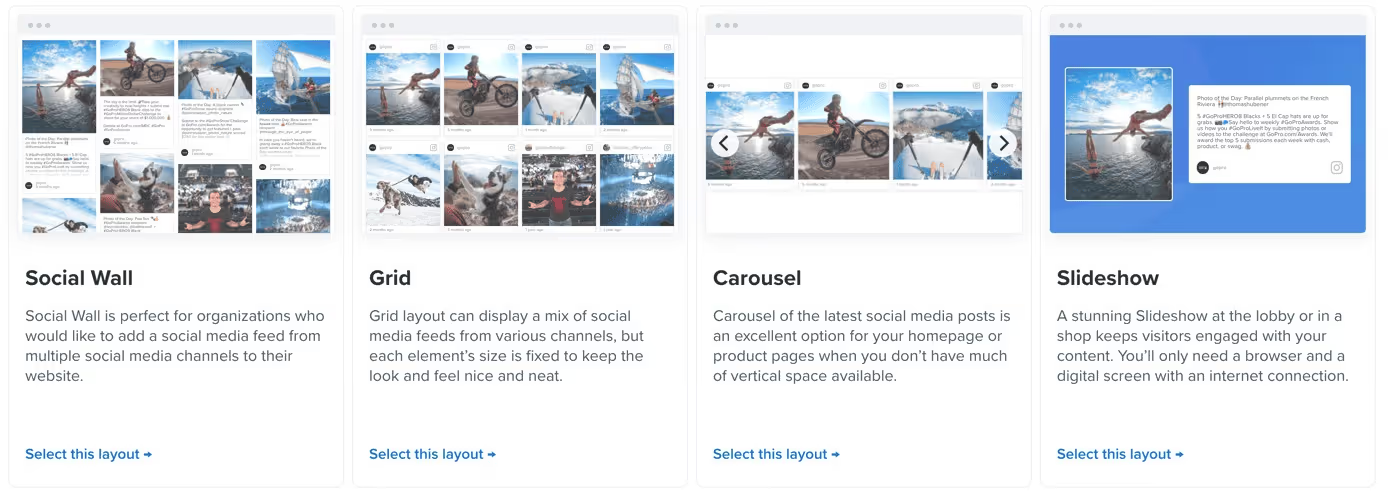
Next, you can also customize fonts, colors, themes, and overall designs of your Instagram wall.
Step 5: Add the auto-generated embed code to your homepage or any other page with the following steps.
1. Add a social media feed to your Shopify homepage
You need to edit the theme layout for embedding Flockler feeds.
Go to Themes, click Actions, and select Edit code.

Next, click “Sections” and tap “Add a new section.”

Now, give a name to this new section. For example, you add “flockler’ here.

Once the name is added, an editor will open up.

Open the editor, and replace the "Section name" with "flockler" (the name given to the new section).
Make sure you replace everything after {% endschema %} with Flockler’s auto-generated embed code.
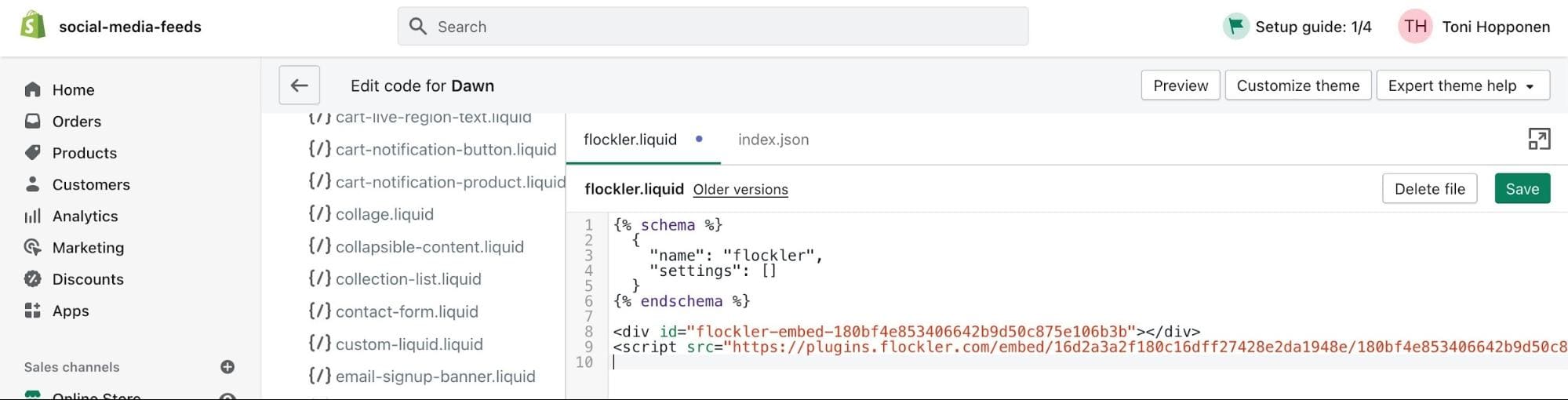
Save your changes.
Next, go to Templates, and select index.json from the list.

Next, an editor will again open up, in which you need to add the following snippet inside sections at the top:
"flockler": {
"type": "flockler"
},
It should appear like this:

Now, choose the right spot for Flockler and add it to the homepage elements list in the code editor. Make sure that each item ends with a comma except the last one.
Save the changes to the templates.
Here’s an example:

Before publishing, you can also check the preview of how the Instagram wall will be displayed on your Shopify homepage.

2. Add a social media feed to all products and collection pages
To embed Flockler code on different product pages, follow the same steps.
But there is only one change.
Now, instead of “index.json,” select either “collection.json” or “product.json.”
3. Add a social media feed to any individual Shopify page.
For embedding a unique Instagram wall on any specific page, select “Text editor,” click the “Show HTML” button, and add the code anywhere in the text.


4. Embed Shoppable Instagram Feeds to Shopify
Step 1: Add your Shopify store details in Flockler
Start by finding two simple details about your Shopify store: your Shopify store URL and your access token.

Step 2: Choose where and what to show
Once both the Shopify store details are added, select which products you want to feature and where to tag them.
There are two ways to showcase products: you can display all products or by collection.
Next, add a name to your feeds.

Step 3: Tag products to your post.
Next, click on the "Tag Products" option and choose the Instagram posts where you want to tag products.
You can easily tag products by clicking the product image.
Click on the image, and select the products you want to feature. For this, Flockler offers an easy-to-use search bar that finds you the right product in seconds.
Click "Add" for shoppable feeds after you've located the product.
Step 4: Add Flockler's embed code
Follow the same steps mentioned above to add Shoppable feeds to your Shopify store
Start embedding your Instagram feeds in your Shopify store today with Flockler’s 14-day free trial and give your visitors an engaging website experience.
Manual method
Step 1: Log in to your Instagram account.
Step 2: Select the post you want to embed and copy the embed code from the post itself. Click the three dots in the upper-right corner of the post and copy the embed code

You can only embed a single post at a time. To embed multiple posts, you have to repeat the same process for each image.

There is very little customization available for posts, so they will appear exactly the same as on Instagram.
Step 3: Paste the embed code into your Shopify page.

There are several limitations to this method:
- There is little to no customization available for your embedded Instagram posts, which may clash with your website's overall design and user experience.
- There is no UGC rights management feature, so you might not be able to embed content from every user on your store.
- There are no built-in analytics to measure and optimize your embedded posts for better results.
In short, the goal is not just to embed Instagram posts, but to do so in a way that makes them an extension of your website. Instagram posts should not ruin your brand style and visual appeal.
FAQs
How do I add an Instagram feed to Shopify?
To add an Instagram feed to Shopify, use the native Instagram embed code for each post and add it to your page editor. But with this method, the embedded posts display similarly to Instagram. With Flockler, users get a single auto-generated code to embed multiple Instagram posts, with full customization available.
What is the best Instagram feed app for Shopify?
Flocker is the best Instagram feed tool to use for Shopify at the moment. Flockler provides a no-coding integration that connects Instagram with Flockler and 12 other social platforms. Marketers can embed Instagram feeds directly into their Shopify store in a few simple steps, with full customization of the Instagram wall.
Why should businesses add Instagram feeds to Shopify stores?
Adding Instagram feeds to a Shopify store makes the website more meaningful and engaging. When new visitors encounter UGC posts embedded on product pages, it provides them with more information about your products and builds trust in your brand. This removes doubts and encourages customers to move forward with a purchase.
Avika Dixit is a B2B SaaS and e-commerce writer with expertise in social media marketing, content strategy, and customer engagement. Over the past three years, she has created long-form, SEO-driven content that helps businesses understand and leverage tools like social proof platforms, UGC aggregators, and digital experience solutions.
Soziale Infrastruktur, die mit Ihnen skaliert.
Starten Sie Ihre kostenlose Testversion oder lassen Sie sich von uns die Plattform in Aktion zeigen.