February 4, 2026
How to Embed YouTube Shorts On a Website: A Quick Guide
X minute de lecture


Une infrastructure sociale qui évolue avec vous.
Commencez votre essai gratuit ou laissez-nous vous montrer la plateforme en action.
200 billion views.
That’s how many views YouTube Shorts get every day, with over 2 billion users.
YouTube is one of the fastest-growing social and search platforms. Shorts are their vertical videos that capture attention and convey messages quickly.
If you’re thinking of embedding YouTube Shorts on your website, you can bring this engaging content directly to your visitors. This keeps them on your domain rather than sending them to YouTube. The question is how to embed them correctly.
There is no dedicated Shorts embed option, no vertical feed layout, and no clear guidance from YouTube beyond the standard video player. This could create confusion, but don’t worry, we’ll show you how to embed YouTube Shorts on websites.
Can You Embed a YouTube Short?
Yes, you can embed YouTube Shorts on websites, though the process differs from embedding regular YouTube videos. YouTube does not provide a direct embed button for Shorts, unlike for standard videos.
When you click the Share button, YouTube shows direct sharing options for social platforms such as Instagram and WhatsApp, along with the video URL. No <iframe> code is required for direct embedding of Shorts.

From a technical perspective, a YouTube Short is still a YouTube video. When you embed it, YouTube loads it inside the standard video player. This means Shorts do not retain their vertical-first, feed-style experience when embedded natively.
This distinction only matters if you want Shorts to appear like Instagram Reels or TikTok embeds on your website. Unfortunately, YouTube does not currently offer that experience through its native embed.
Before we jump into how to embed YouTube Shorts, let’s understand what this means in practice.
How Native YouTube Shorts Embedding Works

When you embed a YouTube Short using YouTube’s default tools, you are embedding the video URL inside an iframe. The player loads in landscape orientation by default, even if the video itself is vertical.
So, what happens when you try to embed a short natively?
- The video plays inside the standard YouTube player
- The Shorts feed experience is removed
- Layout control is limited
- Styling is restricted to iframe dimensions
- Related video behavior follows YouTube rules
In most cases, this approach does not work well because it removes the Shorts viewing experience. It also becomes limiting when you want layout consistency, visual control, or multiple Shorts displayed together.
How To Embed A YouTube Short On Your Website
Even though YouTube doesn’t offer a direct embedding option for Shorts, there’s a workaround. We will explore two ways in which you can embed YouTube Shorts on a website.
Method 1: Manual URL Modification
Yes, you can manually generate the embed code from the Short URL. Here's how:
- Copy Short's URL from the address bar or Share menu
- The URL format is: youtube.com/shorts/VIDEO_ID
- Replace /shorts/ with /embed/ to get: youtube.com/embed/VIDEO_ID
- Create an iframe element using this modified URL
- Set dimensions to 315px × 560px to maintain the 9:16 vertical ratio
This manual method works reliably across most website platforms, from WordPress and Shopify to custom-built sites. While this requires an extra step compared to regular YouTube videos, the process remains simple once you understand the URL structure.
However, this method comes with some drawbacks. Firstly, you need to build an iframe element using the embed URL. Then, depending on the platform you use, you can:
- WordPress: Add a Custom HTML block and paste your code
- Shopify: Use the HTML section in your theme editor
- Wix: Use the embed element from the add panel
- Squarespace: Add a Code block to your page
- Custom sites: Paste directly into your HTML
Finally, since you are embedding a YouTube Short, it is recommended to add parameters to control playback behavior. This also means you need an understanding of URL structure and basic HTML.
Manual embedding becomes impractical when displaying many Shorts or maintaining updated content. Automated solutions let you seamlessly integrate YouTube Shorts into your website's social media feed. So, let’s check out the ideal way of embedding YouTube Shorts onto your social walls.
Method 2 - Displaying YouTube Shorts With Flockler
Flockler is a social media aggregator solution that lets you embed social media content, including YouTube Shorts, without any coding knowledge.
Flockler connects to 10+ social media platforms. All you need to do is connect it to your YouTube channel or playlists and create customizable feeds that update automatically. If your site uses YouTube Shorts as ongoing content, social proof, or part of a broader content strategy, a YouTube widget is the practical choice.
Let’s go through this in detail.
Step 1: Create a Playlist
Before we can create a YouTube feed on your website, we need to create a playlist on YouTube. This way, you can easily sync the playlist with your feed. For that, here’s what you need to do:

- Play or open your preferred YouTube Short for embedding on your website
- Click on the three dots and select ‘Save to Playlist.’
- Create the playlist and name it.
- Save other YouTube Shorts into the playlist.
Step 2: Connect Your YouTube Account to Flockler
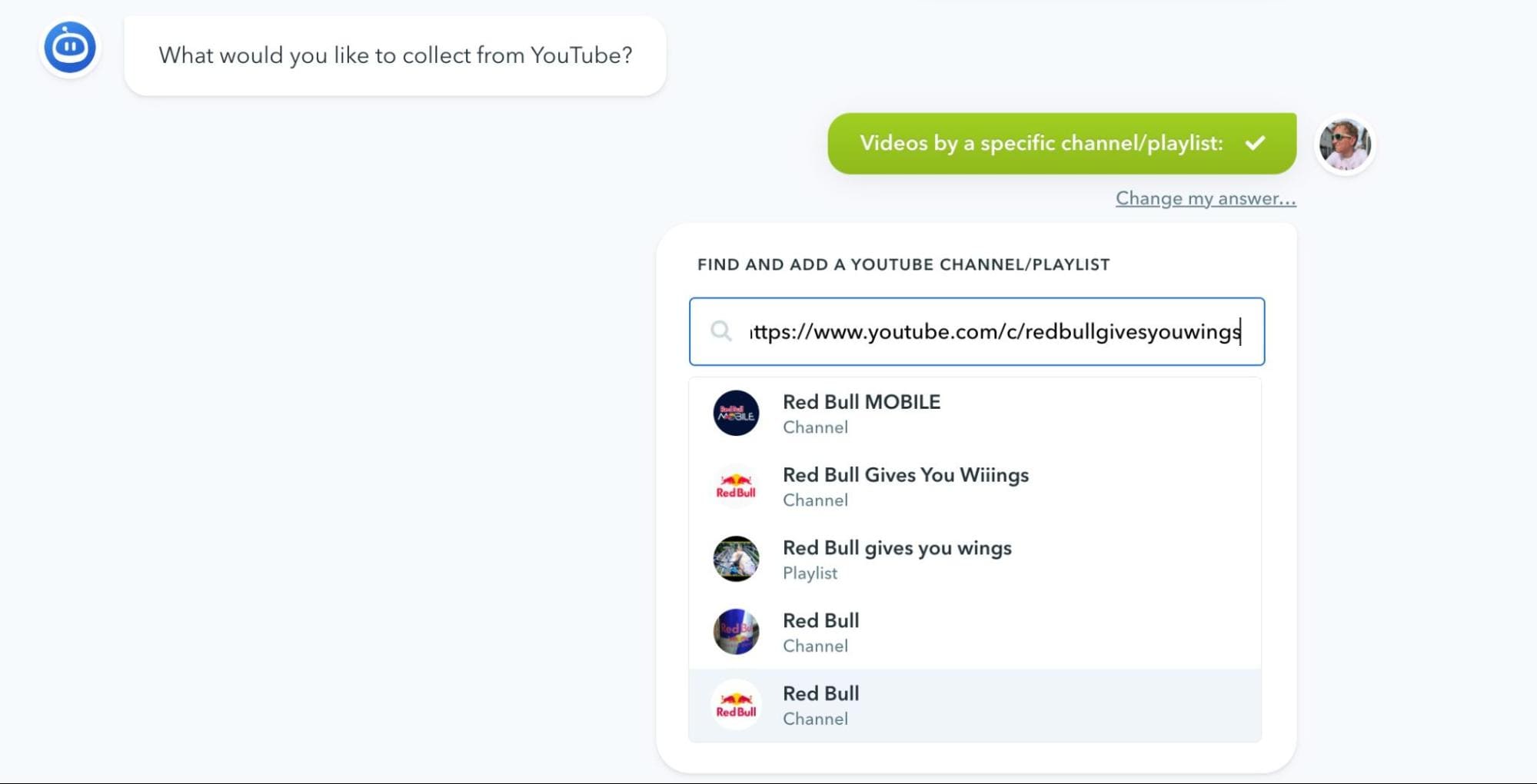
Select YouTube as your content source within Flockler. You have several options for choosing which Shorts or videos to display:
- Specific channel: Pull all Shorts from your brand's YouTube channel
- Curated playlist: Show only Shorts from a selected playlist
- Keyword search: Display Shorts containing specific keywords or hashtags
- Multiple sources: Combine content from different channels or playlists

Flockler fetches the relevant content and stores it in your account, giving you full control over what appears on your website.
Step 3: Choose Your Layout

You can select from four display options suited for different use cases:
Social Wall:
- Dynamic feed similar to social media platforms
- Ideal for homepages or community sections
- Shows the latest content at the top
- Encourages ongoing engagement
Grid:
- Organized rows and columns
- Perfect for gallery pages or video archives
- Clean, professional appearance
- Easy browsing of all content
Carousel:
- Horizontal scrolling through Shorts
- Works well in narrow spaces or above the fold
- Saves vertical page space
- Smooth navigation on mobile
Slideshow:
- Automatic rotation through Shorts
- Suited for landing pages or promotional displays
- No visitor interaction required
- Customizable transition timing
Step 4: Customize the Design
Adjust the appearance to match your website through Flockler's visual editor:
Design controls include:
- Font selections and typography settings
- Custom CSS for advanced styling
- Select layout styles
- Visual adjustments without code
The platform generates responsive embed code that adapts automatically to different screen sizes. This ensures YouTube Shorts display correctly across desktop, tablet, and mobile devices without requiring separate mobile configurations.
Step 5: Add to Your Website

Copy the embed code Flockler provides. Remember, the implementation method varies slightly by platform:
- WordPress: Use the official Flockler WordPress plugin to add widgets easily
- Shopify: Add the embed code to theme sections or HTML blocks
- Wix: Insert the widget using an HTML embed element
- Squarespace: Embed via Code blocks
- Custom websites: Paste the embed code directly into your HTML
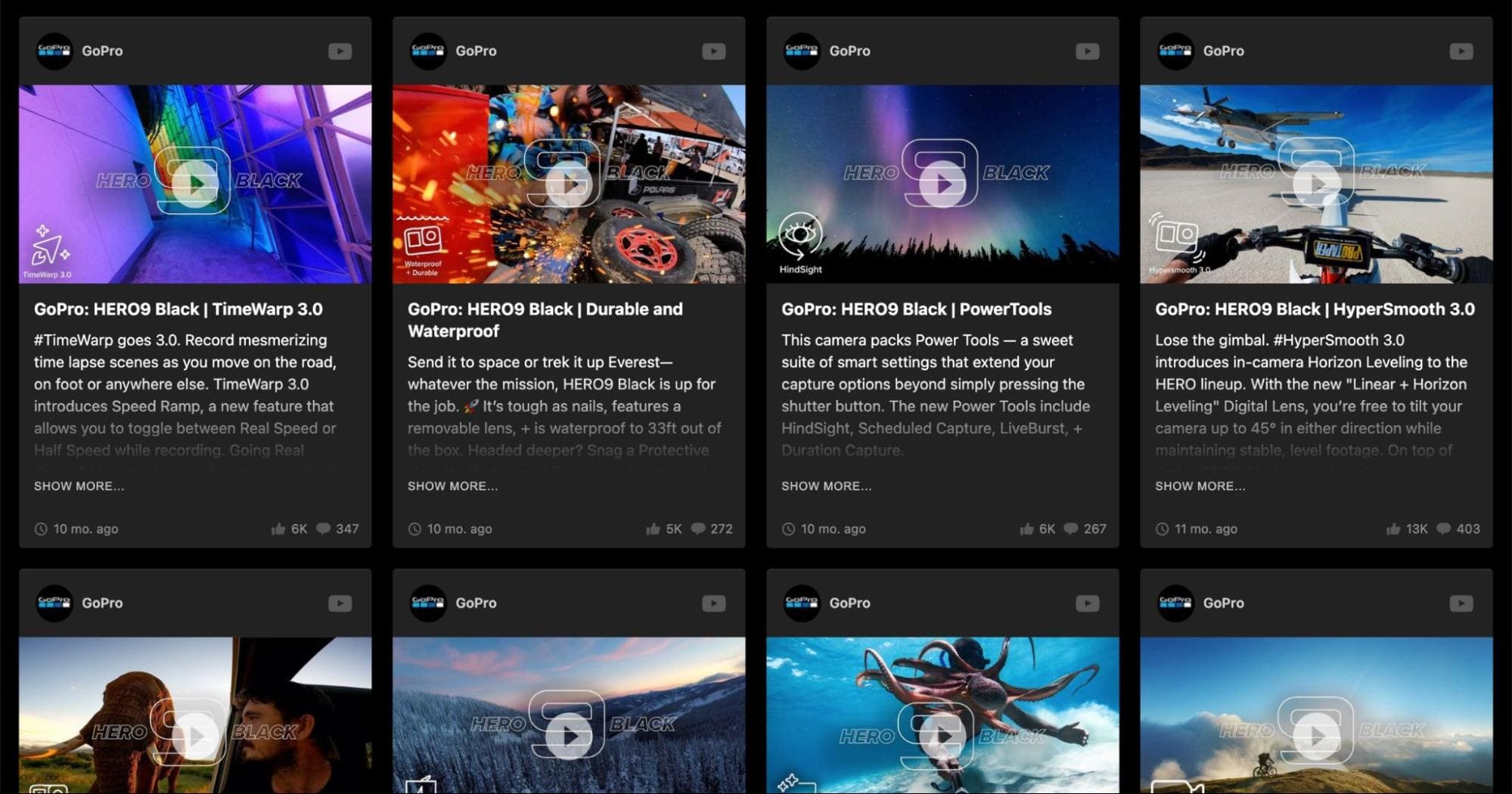
You’ll end up with a social wall that looks something like this once embedded:
Automatic Updates and Moderation

Once connected, you can set the embedded feed to update automatically as new YouTube Shorts are published to the playlist or channel. You can also do this manually.
Moderation options:
- Automatic publishing: New Shorts can appear immediately after being pulled into the feed
- Manual moderation: Review and approve Shorts before they go live
- Content control: Hide or remove Shorts from the feed when they are no longer relevant
This setup is useful if you’re managing high volumes of social content across channels.
Creating a Multi-Platform Social Media Feed Wall

With Flockler, you can embed a multi-platform social wall onto your website. You can combine YouTube Shorts with content from other platforms into a single social feed, including:
- Instagram posts and Reels
- TikTok videos
- Facebook posts and videos
- X (Twitter) content
- LinkedIn updates
- Pinterest pins
This lets websites display short-form video and social content in one unified layout, without maintaining separate embeds for each platform.
Checkout Facebook feed widget for displaying Facebook posts on websites, digital screens or anywhere you wish to.
Native Embed VS Flockler: When to Choose
As we discussed earlier, there is no native embed for YouTube Shorts. However, there’s a way around it, but it’s not meant for complex use cases. When should you choose native YouTube embedding over Flockler?
Native YouTube embed is best when:
- You need to embed a single Short or video
- Layout consistency is not critical
- You accept YouTube player limitations
- The embed is static
Flockler is better when:
- You want to embed multiple Shorts
- Shorts should update automatically
- Design and layout matter
- Shorts are part of a broader content section
- Marketing teams manage content without developer support
Common Website Use Cases for Embedded YouTube Shorts
Where you embed YouTube Shorts on your website also matters for ensuring they receive meaningful engagement.
Product and Feature Pages
Shorts work well on product pages for quick visual confirmation. Embed 4-5 Shorts showing unboxing, setup, or key features below product images. Keep each Short under 30 seconds and focus on a single task or feature. Product pages with demonstration Shorts can lead to higher add-to-cart rates.
Best for:
- Assembly instructions
- Feature highlights
- Size and fit demonstrations
- Common usage scenarios
Landing Pages
Use 1-2 Shorts (maximum) to maintain focus on conversion goals. Position customer testimonial Shorts between the form and supporting content. A single 20-30 second testimonial Short can outperform text-only social proof while keeping visitors on the conversion path.
Strategic placements:
- Next to the main headlines
- Above call-to-action buttons
- In social proof sections
- Campaign-specific promotions
Content Hubs and Resource Pages
Automated feeds work best here since the content updates regularly. Organize Shorts by playlist for different topics. Visitors can browse video libraries without leaving your site, reducing the need to search YouTube directly.
Effective for:
- Tutorial libraries
- Topic-specific resources
- Related content sections
Social Proof and Homepage Sections
Combine YouTube Shorts, Instagram Reels, and TikTok videos into unified feeds. Show real customers, behind-the-scenes content, and brand activity. Automated updates keep content fresh daily. Visitors can interact with content from different platforms ,leading to higher purchase intent.
Implementation types:
- User-generated content showcases
- Customer testimonial compilations
- Brand activity and culture
- Cross-platform social presence
Final Thoughts
Embedding YouTube Shorts on a website lets you display vertical video content directly within your pages.
Manual embedding works only when you want to feature one or a few Shorts on a page. Automated feeds are better suited for ongoing use. They pull new Shorts into your site automatically (if you’ve opted for automatic feed) and allow you to control layout, moderation, and presentation from one place. This is helpful when Shorts are part of a broader content section or appear alongside content from other platforms.
Choose the method based on how often you publish Shorts, how many you want to display, and whether moderation or cross-platform aggregation is required. Regardless of the approach, pay attention to aspect ratio handling, page performance, and mobile display so embedded Shorts fit naturally into your site layout.
If you’re eager to explore, Flockler offers a 14-day free trial. You can connect your YouTube account, create your feed, and embed it on your website to see how it looks.
FAQs
Can YouTube Shorts Be Embedded?
Yes, YouTube Shorts can be embedded on websites. Since YouTube doesn't provide a direct embed option, you manually convert the URL by replacing "/shorts/" with "/embed/".
How to Post YouTube Shorts on the Web?
There are two ways to do this.
1. Copy Short's URL and extract the video ID. Replace /shorts/ with /embed/, then create an iframe and paste this code into your website's HTML editor. WordPress, Shopify, and Wix accept iframe code through Custom HTML blocks.
2. Use Flockler’s YouTube widget to embed YouTube Shorts directly on your website automatically.
Can Flockler Automatically Update YouTube Shorts on My Website?
Yes, Flockler automatically updates your YouTube Shorts. Set up once by selecting your YouTube source, choosing a layout, and adding the embed code. New Shorts appear automatically without manual editing (unless you prefer manual moderation), keeping content up to date with ease.
Does Flockler Support Multiple YouTube Channels and Playlists?
Yes, Flockler combines Shorts from multiple YouTube channels, playlists, or keyword searches into one feed. You can also aggregate YouTube Shorts with Instagram Reels, TikTok videos, and Facebook posts to create a unified social feed with consistent branding and automated moderation.
Maria Prakkat is a SaaS content marketing and SEO strategist with experience across SEO, GEO, and social media aggregation. She writes in-depth, research-backed content that helps businesses understand and apply solutions like social media aggregators, UGC platforms, and content distribution tools to improve visibility and engagement. Her work focuses on clarity, relevance, and long-term impact.
Une infrastructure sociale qui évolue avec vous.
Commencez votre essai gratuit ou laissez-nous vous montrer la plateforme en action.