January 6, 2026
How to Create a Social Media Feed Widget for Websites (Step-by-Step Guide)
X minute de lecture


Une infrastructure sociale qui évolue avec vous.
Commencez votre essai gratuit ou laissez-nous vous montrer la plateforme en action.
Until recently, your website and social media existed in two different worlds.
Your website is where you place all your long-form content. Your social media feed, on the flip side, is where you upload all your day-to-day content.
It may sound organized and logical, given that these two channels target different people. What’s challenging here is that most people see one world and miss the other.
Today, social media helps people discover and interact with brands, with over 5.24 billion people actively using social platforms worldwide.
Consumers expect brands to be in motion, up to date and in touch with trends. Having an online presence that doesn't align with what's happening on your social media sites could be perceived as stagnant, even if your site is beautifully designed.
How do you connect your website and social media in a way that your consumers get to experience the best of both worlds? A social media feed widget is your solution.
It lets you integrate real, live social media content, including your UGC campaigns, onto your website in a natural, organic way. This matters now more than ever because over 40% of shoppers consider UGC as an integral part of their purchase decisions.
What is a Social Media Feed Widget?

A social media feed widget is nothing but a tool or feature that lets you display live posts from your social channels directly on your site. So, instead of manually updating content on your website, you can use a social media feed aggregator to collect posts, images, and videos from platforms like Instagram or X and display them on your site in real time.
Benefits of a Social Media Widget for Websites
Gone are the days when your website and social media lived in two separate corners of the internet. People now discover, explore, and decide in real time.
When they land on your website that hasn’t changed in weeks or months, with static content, it creates a disconnect between what’s happening socially and the story your brand is trying to tell.
A social media feed aggregator helps close that gap by bringing current social activity into your site.
Live User-Generated Content Builds Context and Trust

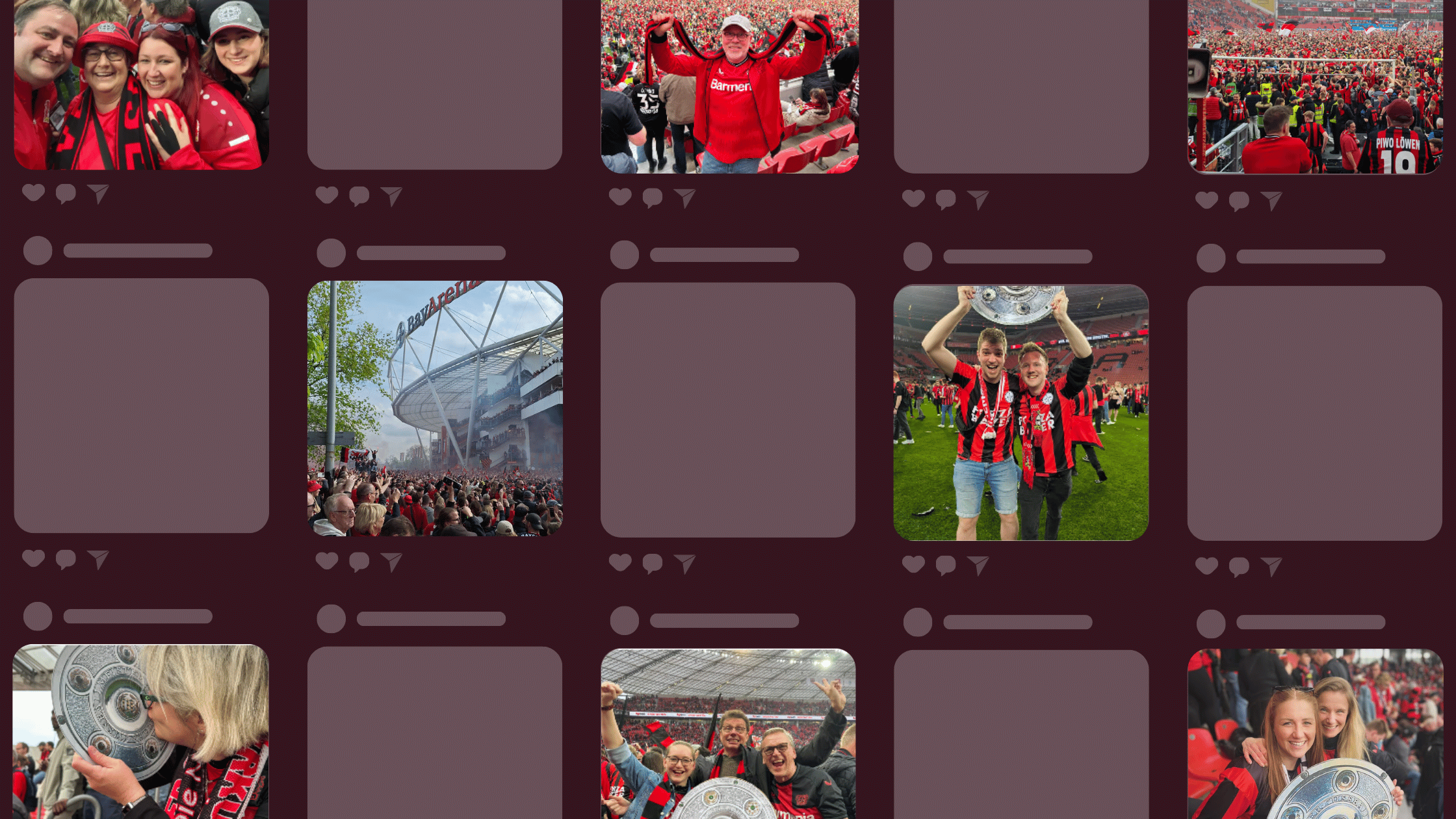
When you embed social feed content, visitors see user-generated posts, tagged visuals, and mentions pulled directly from platforms like Instagram, TikTok, and X. UGC content is often perceived as more trustworthy than brand-created content and helps people understand how your product or service fits into real-life situations.
Your Website Stays Fresh Without Constant Updates
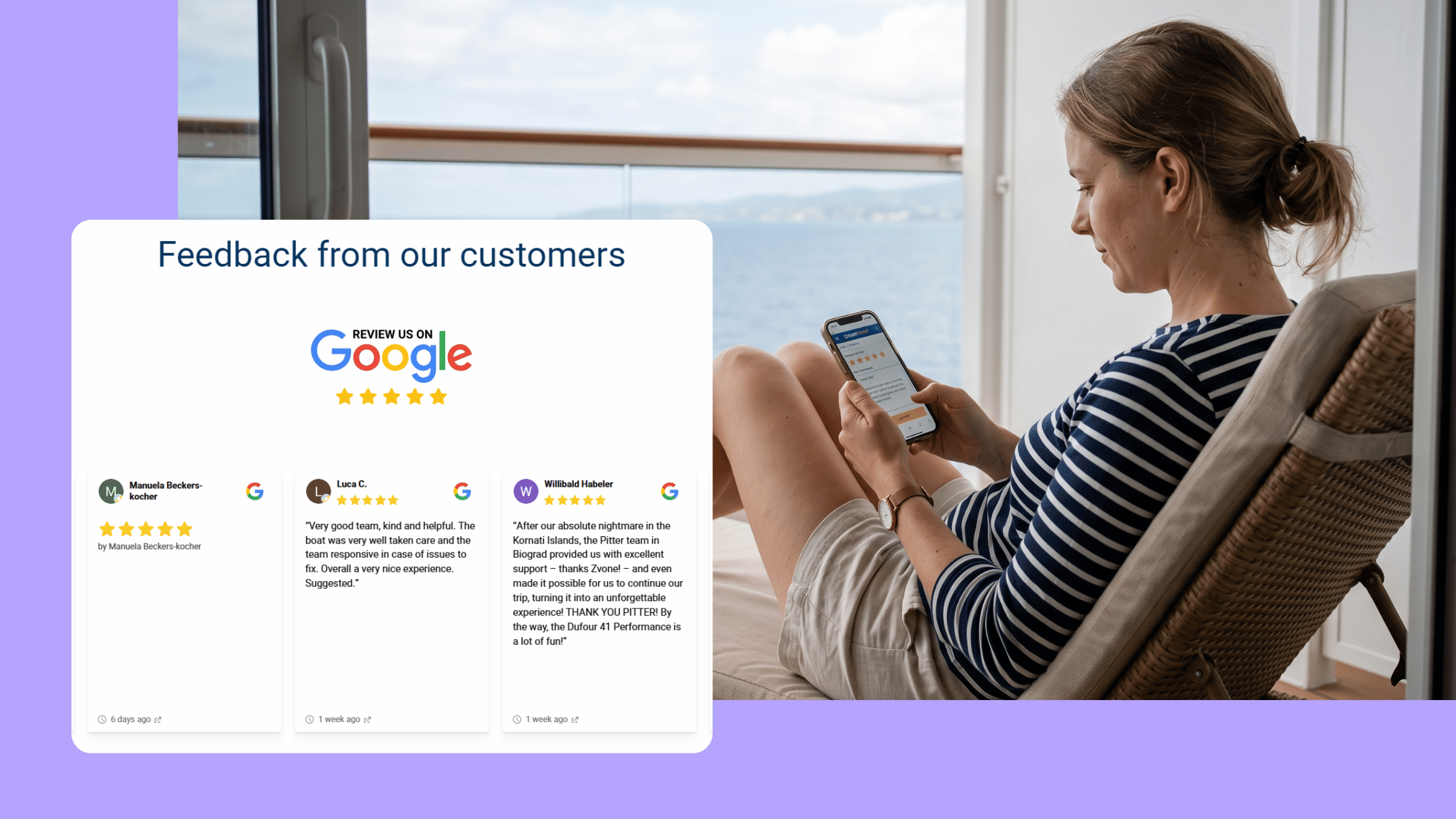
A social feed widget updates automatically as new content is published on social media. This reduces the need for manual updates, new visuals, or collecting customer reviews separately for your site.
Embedded Social Feeds Create Continuity Across Channels
When your website reflects your social activity, visitors experience your brand as one connected whole rather than fragmented touchpoints. Relevant, timely content can also encourage people to spend more time on your site and explore beyond a single page.
Easier Content Management as Your Site Grows
While your website grows with new pages, campaigns, or product sections, social feeds can be recycled and repurposed, so you don’t need to rebuild the content from scratch. The same feed can support multiple use cases by changing how and where it’s displayed.
Less Reliance on Developers for Updates
Since social feed widgets are dynamic, there is no need for developer involvement at each step to change the content or layout. The marketing and content teams can manage whatever appears on the site with minimal to no coding knowledge.
Better Visual Balance on Pages That Are Long or Content-Heavy

On pages with heavy text, embedded social feeds introduce natural visual breaks. It helps pages feel less dense and gives visitors a quick way to pause, scan, and re-engage before continuing.
How to Create a Social Media Feed Widget
Creating a social media feed widget is easier than you think and is mostly about structure and intent. The technical part is usually straightforward. The harder part is deciding what role the feed should play on your site and how it fits into the bigger content picture. Let’s explore step by step how to create a social feed widget.
Step 1: Decide on the Type of Social Content

Not all social content is website content.
Before setting anything up, look at what you publish and what your audience shares. The content that works best in a social media feed widget for a website is usually:
- User-generated posts that show real usage or experiences
- Tagged photos or videos from customers or event attendees
- Posts that add context or visual depth to your pages
- Content that stays relevant beyond a few hours or days
Highly time-sensitive updates or purely promotional posts often feel out of place once embedded on a website.
Step 2: Choose the Right Feed Type and Source

Most social feed widgets let you pull content in different ways. The setup you choose depends on the story you want the feed to tell.
Common feed types include:
- Posts from your own social accounts
- Hashtag-based feeds around campaigns or events
- Tagged or mentioned posts from your community
- A combined feed using a social media feed aggregator widget
If you want to highlight community activity, tagged or hashtag feeds usually work better than brand-only posts. They bring in different voices making the feed feel less curated.
Step 3: Create a Flockler Account and Access the Dashboard

Flockler lets you show branded social feeds directly on your website to create beautiful social walls. The setup is hassle-free and designed to be easy, even if you’re not technical.
Sign up for a free 14-day trial on Flockler, and you’ll land in the Feed dashboard. This is where your social media feed widget really starts to take shape.
You can begin by creating an automated feed. Flockler walks you through this step clearly, starting with the social platform you want to pull content from. You can choose sources like Instagram, X, LinkedIn, TikTok, YouTube, or others, depending on where your content lives.
From there, you decide how content should be collected. This can include:
- Posts from a specific social account
- Hashtag-based feeds tied to campaigns or themes
- Tagged or mentioned posts from your audience
- A mix of multiple sources combined into one feed
As content starts coming in, it appears directly in the Feed dashboard. You can immediately see posts with images, videos, captions, hashtags, and timestamps, exactly as they would appear on your website.
You can also pin important posts, reorder them, hide anything that doesn’t belong, or edit posts to add tags or calls to action. Flockler’s drag-and-drop moderation makes this feel practical. Moreover, you stay in control without needing to clean things up later on the website itself.
Flockler also helps automate your social content posts using its automated feed feature.
This is where you can collect posts from particular accounts, mentions of your brand, or posts from particular hashtags. Feeds can also be paused or modified whenever you feel like it. The posts are stored in one place, where you can arrange them using sections or tags. Unwanted users or keywords can also be blocked whenever necessary.
Step 4: Choosing the Right Layout

Once your feed is curated, the next step is deciding how it should appear on your website. In Flockler, this happens in the layout and display section.
You don’t need to rebuild the feed. You’re simply choosing how the same content should be presented. This is useful because the same feed can look very different depending on where it’s used.
Flockler gives you several layout options:
- Social Wall: It works well when you want to show a mix of content from multiple channels in one place. Social walls are commonly used on landing pages or campaign pages where visual impact matters.
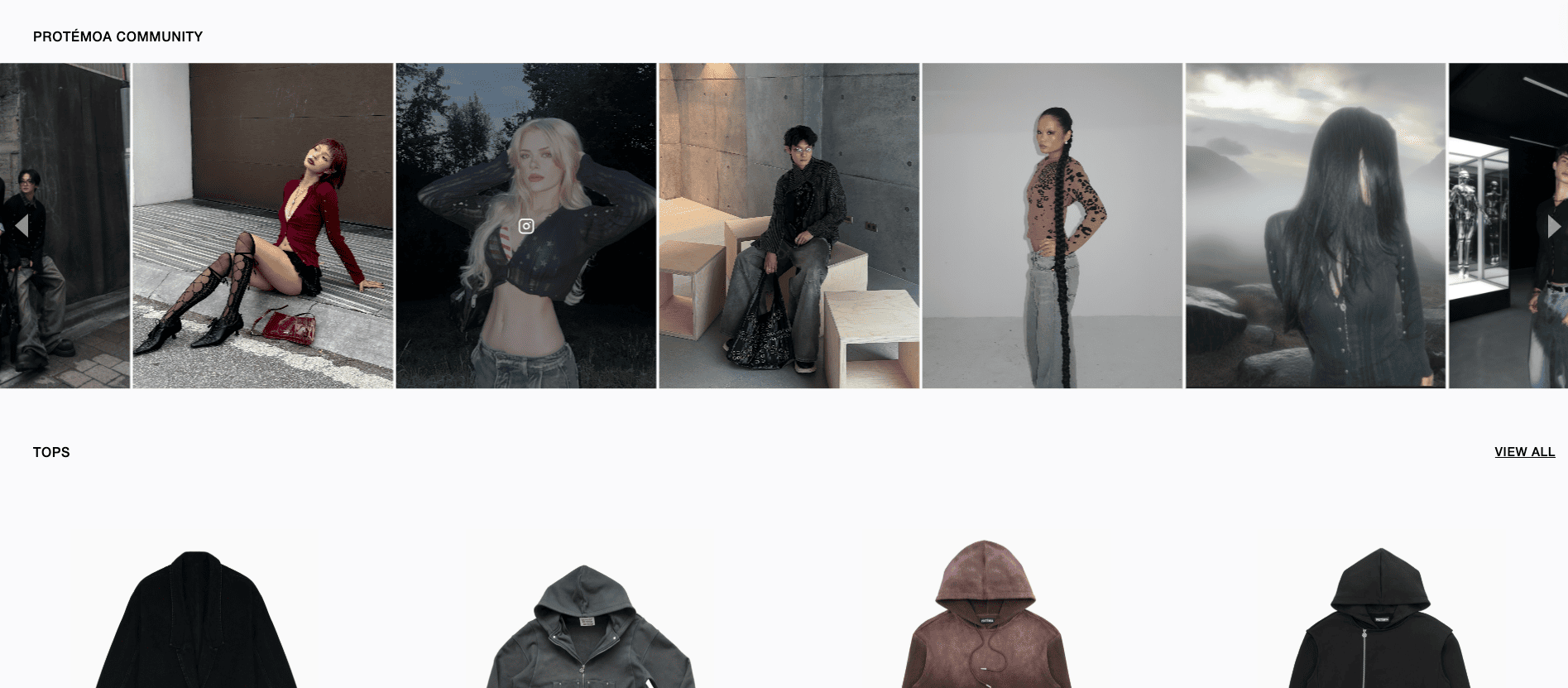
- Grid: Keeps everything structured and evenly sized. This works well on homepages or content-heavy pages where visitors are scanning.
- Carousel: Useful when space is limited. It lets you highlight posts one at a time without taking over the page.
- Slideshow: Rotates content automatically and is often used when social content needs to sit alongside other messaging.
After choosing a layout, you can adjust basic styling such as spacing, number of posts shown, and which elements are visible. The changes are reflected instantly in the preview, so you can see how the feed will look before embedding it.
A quick note: the goal here isn’t to decorate the feed. It’s to ensure it fits naturally on the page where you want to add the social feed widget.
Step 5: Preview the Feed and Test It in Context

Before embedding anything, it’s worth previewing the feed properly.
Flockler lets you preview layouts directly, which helps you check things like:
- Whether the content mix feels balanced
- If pinned posts appear where you expect
- How the feed behaves on different screen sizes
This step often catches small issues early, like a post that feels out of place or a layout that feels too dense for the page it’s meant for. You can fix these inside the dashboard and adjust things after the feed is live.
Step 6: Embed the Social Media Feed Widget on Your Website

When the feed looks right, embedding it is the easiest part.
From the display section, all you need to do is copy the embed code generated for your chosen layout. Flockler provides various embed options, including iframe versions, if your platform requires them.
If your site runs on WordPress, Flockler offers a simple social media widget setup. From the Display section, you can install the free Flockler for WordPress plugin and generate a shortcode for your feed.
Copy the shortcode and paste it into any page, post, or widget area. The feed updates automatically as content or layouts change in Flockler, so you don’t need to re-embed or manage anything from WordPress itself.
Here’s the best part. You don’t need to touch the page again after this.
Any changes you make later in Flockler, such as moderation updates or layout tweaks, are automatically reflected on your website.
Step 7: Keep the Feed Updated Through Ongoing Moderation
Once the widget is live, Flockler becomes the place you return to when you want to adjust what visitors see.
As new content comes in, you can:
- Review and approve posts
- Hide or blacklist content that no longer fits
- Reorder posts for better flow
- Reuse the same feed across different pages or layouts
This is what makes the setup easy and sustainable to use. You don’t have to rebuild feeds or update pages manually, and you get to manage content all in one place.
Best Practices for Using Social Feed Widgets on Websites
A social media feed widget can add a lot of value to your website, but only if it’s used with intention. It can’t be a placeholder or used solely for decoration.
Here are some best practices to keep in mind while creating a social media widget for websites:
Start With a Clear Purpose

Before adding a social media widget to your website, decide what it should show on that specific page. A homepage feed might highlight recent activity or community engagement. A product page feed should show real usage or customer posts (or shoppable UGC feed). The content should change depending on where it’s placed.
Limit What Gets Displayed
Don’t try to pull in your entire social media feed into your website. That rarely works. Set clear moderation rules and regularly review posts. Hide repetitive content, off-topic mentions, and low-quality visuals. A shorter feed with strong posts is easier to scan and feels more intentional.
Control How Much Space the Feed Takes
Social feeds should support the page, not dominate it. Keep post counts reasonable and avoid placing feeds too high on content-heavy pages where they interrupt the main message.
Choose Layouts Based on Reading Behavior
Grids work well where people scroll quickly. Carousels fit better in tighter sections. Walls are better suited to landing pages where visual impact matters. Be creative and use different layouts across pages based on scrolling and reading behavior.
Check Performance on Mobile First
Mobile devices have a larger market share, with over 50% of users compared to tablets or desktops. This means most people will first experience your social feed widget on a phone. So, test spacing, load time, and scroll behavior on smaller screens before publishing.
Review the Feed as Content Changes
Campaigns have cycles, hashtags do go out of style or become irrelevant, and posting patterns shift. Check your feed sources or moderation settings every now and then to ensure they are showing content related to what you would like to be visible to your site users.
Well-organized social feed widgets increase clarity. Those that are ignored are counterproductive.
Closing Thoughts
A social media feed widget can work very effectively if it looks and feels like real activity and is maintained accordingly. By focusing on your content and its arrangement on your pages, you can make social feeds part of your web page rather than an addition to it, making your website current on its own.
If you’re looking for a simple way to collect and moderate social content on your website and then display it in an organized way, Flockler allows you to create branded Social Feeds and Social Walls with no coding required. You can give it a try for free.
FAQs
What is an Instagram feed widget?
An Instagram feed widget displays posts from an Instagram account, hashtag, or mentions on a website. It’s commonly used to show recent posts, user-generated content, or campaign visuals without manually updating the page.
Do social media feed widgets slow down a website?
Not necessarily. The performance of your social media feed widgets depends on how they are built and embedded. Well-optimized tools load content easily, adapt to mobile screens, and avoid blocking page rendering. It’s always a good idea to test load time and mobile behavior before publishing a feed site-wide.
Should I moderate social content before displaying it on my website?
Yes, especially if you’re showing user-generated content. Moderation helps ensure posts stay relevant, on-brand, and appropriate for your audience. Most modern social feed widgets allow you to approve posts, hide unwanted content, or filter feeds by hashtags and sources.
Where should I place a social media feed widget on my website?
Placement depends on the page’s purpose. Social feeds often work well below hero sections, on product pages for added context, and within blog posts as visual breaks. You can use them on campaign pages to highlight participation as well.
Can I use the same social media feed across multiple pages?
Yes. Many tools let you reuse the same feed in different layouts across multiple pages. This makes it easier to keep content consistent while adjusting its appearance based on the page context. This also avoids any duplicate setup or maintenance work.
Maria Prakkat is a SaaS content marketing and SEO strategist with experience across SEO, GEO, and social media aggregation. She writes in-depth, research-backed content that helps businesses understand and apply solutions like social media aggregators, UGC platforms, and content distribution tools to improve visibility and engagement. Her work focuses on clarity, relevance, and long-term impact.
Une infrastructure sociale qui évolue avec vous.
Commencez votre essai gratuit ou laissez-nous vous montrer la plateforme en action.